AI Butler
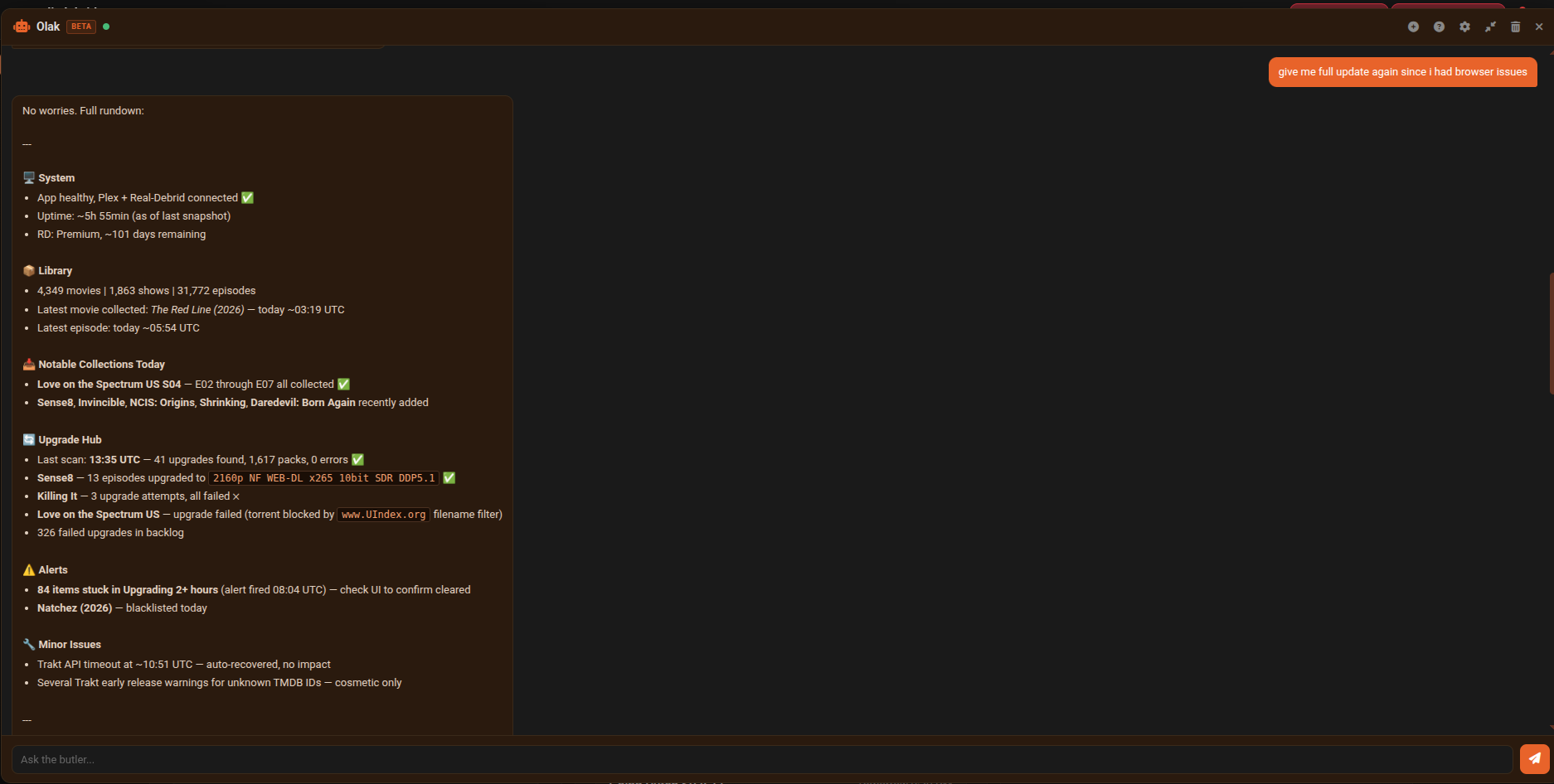
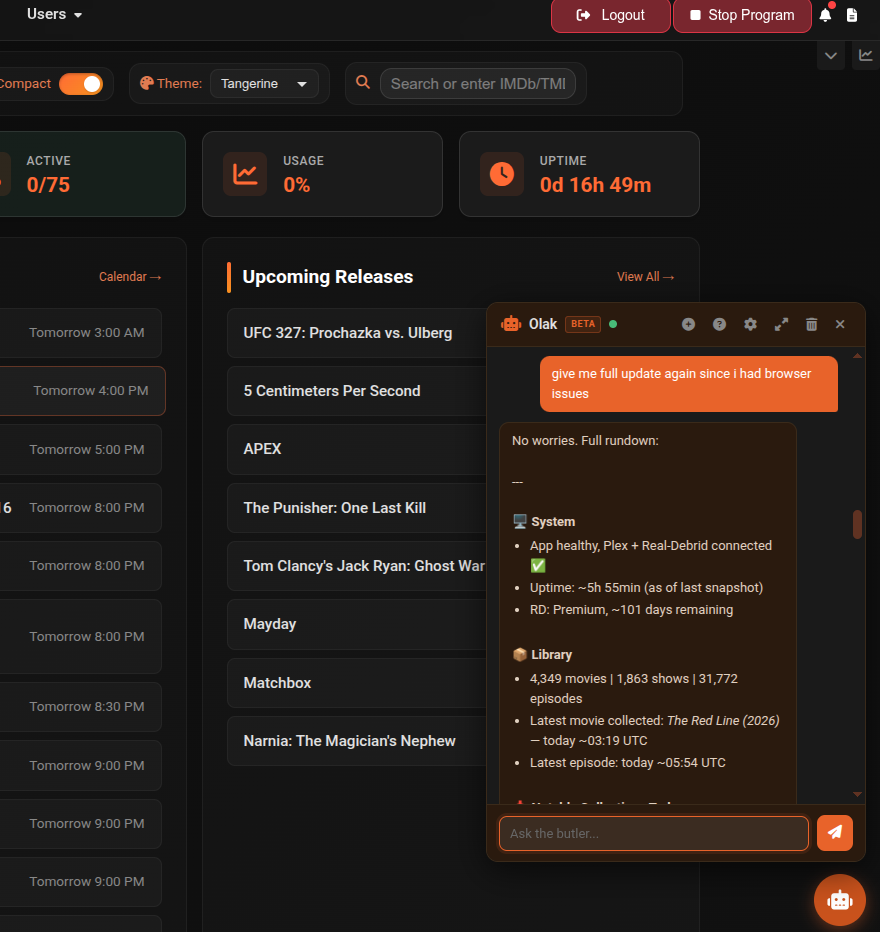
The AI Butler is a floating chat assistant powered by your self-hosted OpenClaw instance. It has live access to your cli_debrid data — queues, library, settings, health stats, and watch history — and can answer questions, diagnose issues, suggest fixes, and take actions on your behalf.
Requires OpenClaw
The AI Butler requires a self-hosted OpenClaw instance (docs.openclaw.ai). OpenClaw handles AI provider selection and session memory.
Paid AI API recommended
Works best with a paid AI API (e.g. OpenAI, Anthropic, Gemini). Free tier models may lack the context window or tool-calling capability needed for reliable responses.
Setup
- Deploy an OpenClaw instance — see the OpenClaw integration guide
- Go to Settings → Additional Settings → AI Assistant
- Enter your OpenClaw URL and Bearer Token
- Set Agent ID (default:
main) and Display Name to match your agent's name - Toggle Enable AI Butler on
- Save Settings — the status dot turns green if the connection succeeds
Opening the Butler
Click the robot icon in the bottom-right corner of any page to open or close the chat panel. The panel state is remembered across page loads.
Chat
Type your question or request and press Enter (or Shift+Enter for a new line). The assistant responds using real-time streaming.
Examples of things you can ask:
- "Why is my queue stuck?"
- "What's my current download count?"
- "Recommend some action movies I haven't seen"
- "Turn on debug logging for the scraper"
- "Run the upgrade scan"
- "How much memory is the app using?"
- "What movies have I added recently?"
Header buttons
| Button | Description |
|---|---|
| + (New Session) | Start a fresh session — clears OpenClaw's server-side memory and your local chat history. Use this when switching topics. |
| ? (Help) | Opens the in-app help page |
| ⚙ (Settings) | Opens the AI Assistant settings modal directly from the chat — no need to navigate to Settings |
| Expand / Compress | Toggle between default size and full-screen view. Useful for long responses or recommendation lists. |
| Trash (Clear) | Clears local chat display and stored message history without resetting the server-side session. Tidies the chat without losing the AI's memory context. |
| X (Close) | Closes the panel without clearing anything |
| Status dot | Green = connected, Red = unreachable, Grey = disabled |
Action cards
The AI Butler produces interactive cards inline in the chat:
Apply Setting card — When the AI suggests changing a setting, it shows an Apply button. Clicking it saves the setting immediately. If the change requires a program restart, a Restart button appears.
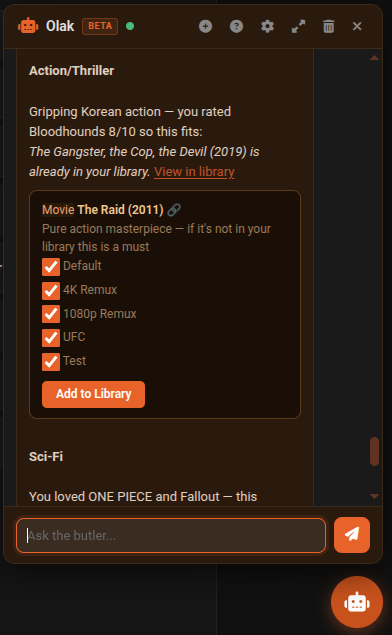
Add to Library card — When the AI recommends content, it shows a card with an Add to Library button. Clicking it adds the title to your Wanted list via Trakt lookup. Items already in your collection show a View in Library link. Uncollected titles link to the Discover page.
What the AI knows
The AI receives a system prompt on each message that includes:
| Context | Description |
|---|---|
| Queue state | Counts, recent errors, program running status |
| Key settings | Scraper config, content sources, version config summary (tokens redacted) |
| Health metrics | Memory usage, blacklist rate, error rate |
| Library summary | Movie/show/episode counts, recent additions |
| Watch history & ratings | When Content Recommendations is enabled |
| Collected IMDB IDs | For recommendation filtering |
| Habit patterns | When Habit Learning is enabled |
| Full config + logs | When Share Full Config is enabled (secrets always redacted) |
Feature toggles
| Toggle | Default | Description |
|---|---|---|
| Settings Assistant | On | Allow the Butler to suggest and apply settings changes via APPLY_SETTING cards |
| Proactive Notifications | On | Run background health checks and push alerts to your notification channels |
| Content Recommendations | On | Include watch history and library context for personalised suggestions with Add to Library buttons |
| Habit Learning | On | Record usage patterns and surface summaries to the AI for better context |
| Health Notifications | On | Send proactive alerts when health issues are detected |
| Share Full Config with AI | On | Send full config and logs (secrets always redacted). When off, only brief excerpts are sent. |
For full setting descriptions see Additional Settings → AI Assistant.
Proactive health checks
When Proactive Notifications is enabled, the AI Health Monitor runs in the background and automatically pushes plain-English alerts to your configured notification channels (Telegram, Discord, etc.) when it detects:
- Stuck queue (items not moving for 2+ hours)
- High blacklist rate
- High error rate
- Stalled upgrading items
- Database growing very large
Important notes
- The OpenClaw URL must be reachable from inside the cli_debrid Docker container, not just from your browser. If you use a reverse proxy or Tailscale, use the internal/container-reachable address.
- OpenClaw handles all AI provider credentials — cli_debrid never sees your API keys.
- Session memory is scoped per session ID. Starting a new session clears the AI's memory of your conversation but does not affect your library or settings.
- The AI cannot delete media items or modify the database directly. It can trigger program actions (start/stop queue, run tasks, scan library) but these are the same actions available in the UI.
Tips
- Use New Session (+) when switching topics to avoid prior context influencing responses.
- Use Expand to go full-screen when reviewing long recommendation lists or detailed diagnostics.
- For setting changes, the AI's Apply cards are safer than editing settings manually — the AI explains the reason before applying.
- If the status dot is red, check that OpenClaw is running and that the URL and token in settings are correct. Verify with
curl http://your-openclaw-url/healthz.