Database Browser
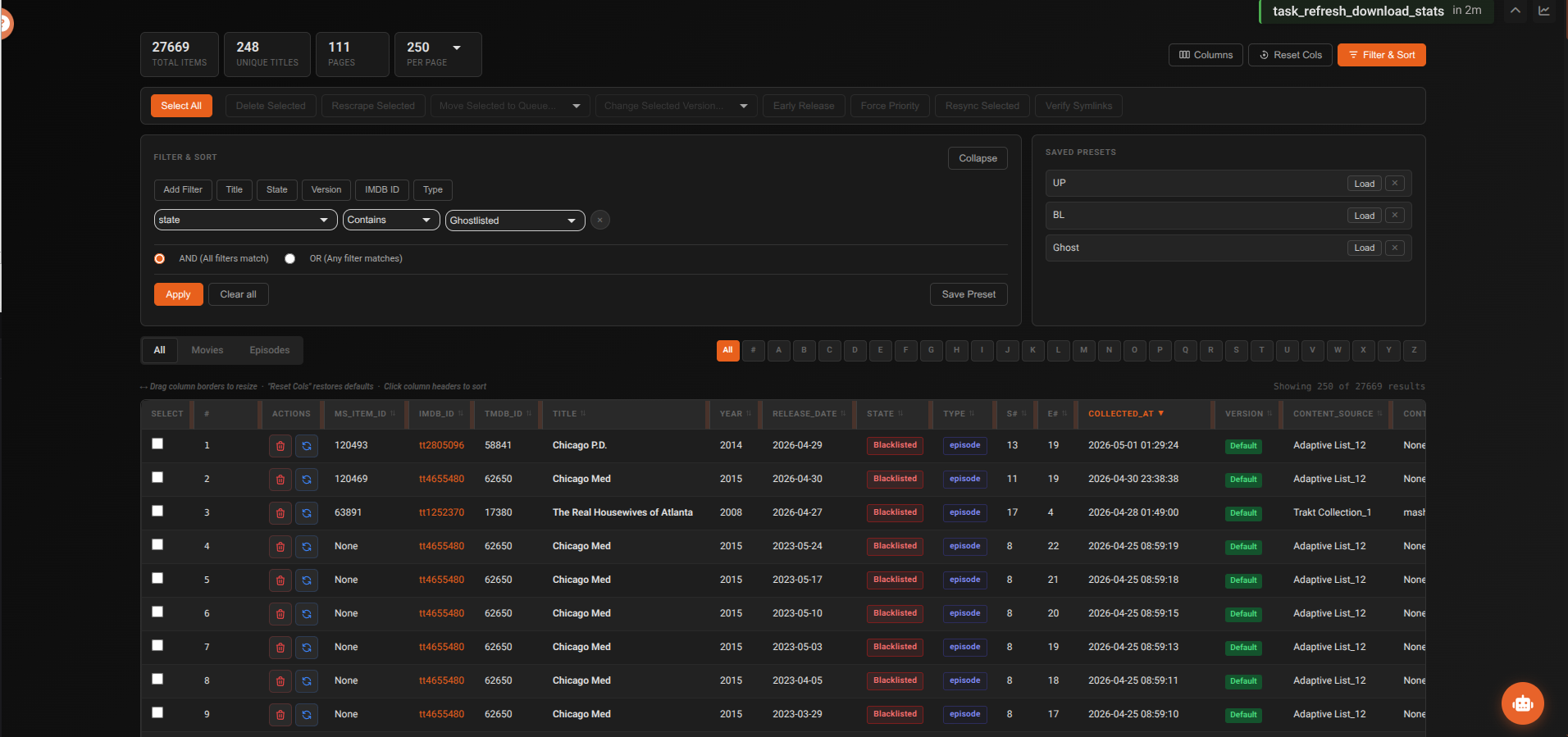
The Database Browser lets you view, filter, sort, and take actions on every item in your media library directly — without needing a separate SQLite tool. It's the go-to place for bulk operations and inspecting item states.
Views
The Database Browser has two views toggled from the header:
Table view — the default. Full filtering, sorting, column customisation, and bulk actions.
Visual Grid view — poster card layout. Search by title and scroll through your library visually. Cards show poster, title, year, and type.
Stats panel
Click the chart icon to expand the Stats panel showing total Movies, Shows, and Episodes in your database.
Content type & alphabet filters
| Filter | Options |
|---|---|
| Content type | All, Movies, Episodes |
| Alphabet | All, #, A–Z — jump to items starting with that letter |
Advanced filtering
Click Add Filter to build multi-condition filters. Quick filter buttons for common columns (Title, State, Version, IMDB ID, Type) are also available.
| Filter option | Description |
|---|---|
| Column | Any column in the table |
| Operator | contains, equals, greater than, less than, etc. |
| Value | Text input or dropdown (pre-populated for State, Type, Version, Content Source, Upgraded, Early Release) |
| Logic | AND (all filters must match) or OR (any filter matches) |
Sorting
Use the Sort Column dropdown and Ascending / Descending toggle. Click Apply to update results.
Column customisation
Click Select Columns to Display to open the column manager:
- Move columns between Available and Selected lists
- Reorder selected columns with the ▲ ▼ buttons
- Drag column headers to resize widths
- All choices persist in your browser (localStorage)
Available columns: id, imdb_id, tmdb_id, title, year, release_date, state, type, episode_title, season_number, episode_number, airtime, collected_at, version, content_source, upgraded, early_release, size
Per-item actions
Each row has inline action buttons:
| Action | Description |
|---|---|
| Delete (×) | Remove item from the database. Optionally blacklist to prevent re-adding. |
| Rescrape (↻) | Delete and move back to the Wanted queue for a fresh scrape |
Bulk operations
Select items using checkboxes. Use Shift+click to select a range. Then choose an action from the bulk action bar:
| Action | Description |
|---|---|
| Delete Selected | Remove all selected items. Optionally blacklist. |
| Rescrape Selected | Move all selected back to Wanted |
| Move to Queue | Move all selected to a specific queue state |
| Change Version | Apply a different quality profile to all selected |
| Early Release | Flag selected items for early-release handling |
| Force Priority | Mark items to jump to the front of the queue |
| Resync Selected | Resync symlinks and database paths for selected items |
| Verify Symlinks | Add selected items to the symlink verification queue |
Select across all pages
After clicking Select All, a Select all N matching button appears to select every item matching the current filter — not just the visible page.
Bulk operations are batched (450 items per batch) to avoid database lock issues.
Item states
| State | Meaning |
|---|---|
| Wanted | Waiting to be scraped — will be processed next cycle |
| Scraping | Currently being searched |
| Adding | Torrent found, being submitted to debrid |
| Checking | Waiting for file to appear at mount |
| Collected | In your library |
| Sleeping | All known torrents blacklisted — waiting to retry |
| Blacklisted | Torrent blacklisted for this item |
| All Versions Blacklisted | Every version has been blacklisted |
| Unreleased | Release date not yet reached — will auto-move to Wanted on release |
| Pending Uncached | Waiting for an uncached download slot |
| Upgrading | Better version being sought |
| Final Scrape | One last scrape attempt before blacklisting |
| Ghostlisted | Soft-deleted — hidden from library but preserved in the database |
Common tasks
Finding a stuck item
- Filter by State → select the stuck state (e.g. Sleeping)
- Search for the title
- Use Rescrape to retry, or Move to Queue to force a state
Bulk-clearing sleeping items
- Filter by State = Sleeping
- Click Select All then Select all N matching
- Click Move to Queue → Wanted
Removing a show completely
- Filter by title
- Select all episodes and the show entry
- Click Delete Selected
- Check Blacklist if you don't want it re-added from content sources
Fixing an incorrect episode number
- Find the item in the database
- Note the Item ID
- Go to Debug Functions → Fix Episode Numbers
- Enter the Item ID and correct episode number