Required Settings
These settings must be configured for cli_debrid to function. They are collected during onboarding and can be updated at any time from Settings → Required Settings.
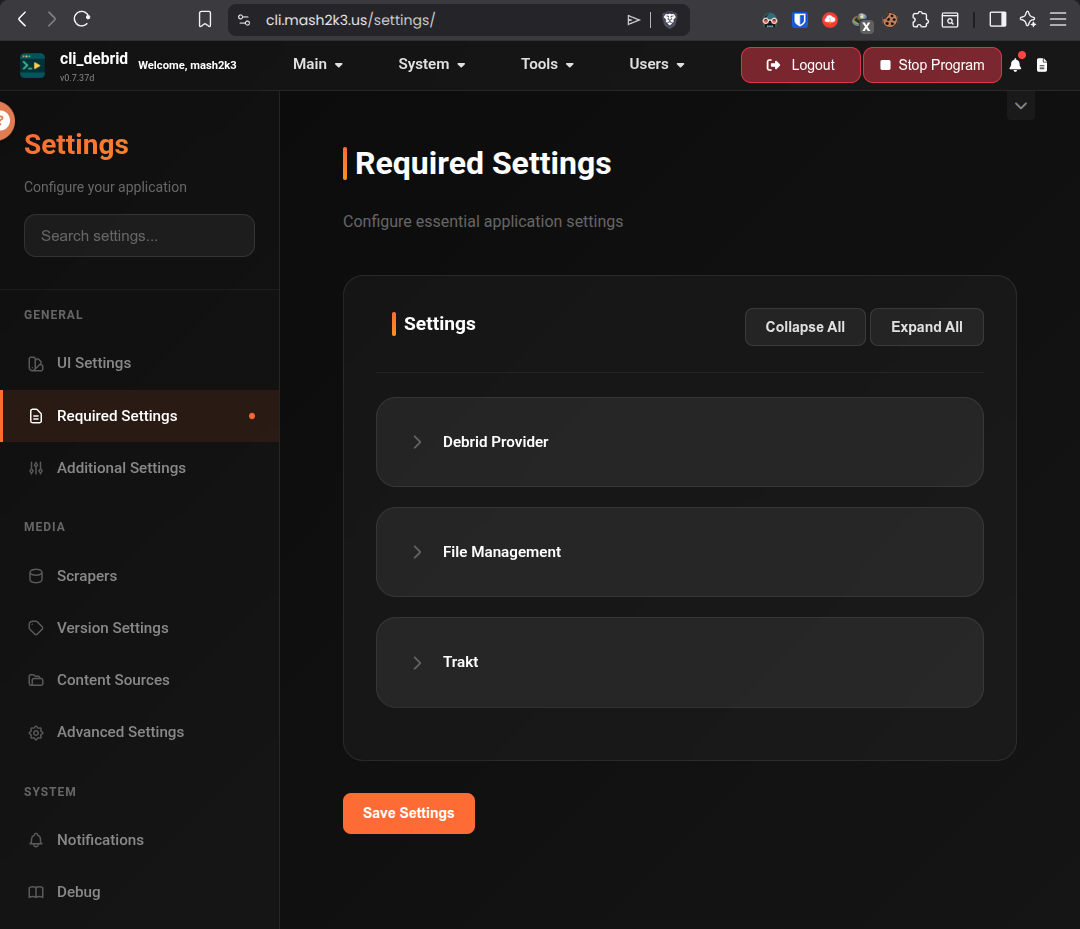
Debrid Provider
| Setting | Description |
|---|---|
| Provider | Your debrid service: Real-Debrid, AllDebrid, Premiumize, Torbox, or Debrid-Link |
| API Key | Your debrid API key — found in your account dashboard |
Getting your API key
Go to real-debrid.com/apitoken while logged in.
Go to alldebrid.com/apikeys while logged in.
Go to premiumize.me/account and look for API Key.
Go to torbox.app/settings while logged in.
Go to debrid-link.com/webapp/apikey while logged in.
Fallback Providers
You can configure additional fallback debrid providers. When the primary provider fails — due to rate limits, DMCA blocks, or errors — cli_debrid automatically tries the next provider in order.
Click Add Fallback Provider in the Debrid Provider section to add a fallback. Each fallback has its own provider selection and API key. Fallbacks are tried in the order they are listed.
Plex / Jellyfin
| Setting | Description |
|---|---|
| Plex URL | Full URL to your Plex server, e.g. http://192.168.1.10:32400 |
| Plex Token | Your Plex authentication token |
| Shows Libraries | Comma-separated list of your TV library names or IDs, e.g. TV Shows,Anime or 2,4 |
| Movie Libraries | Comma-separated list of your movie library names or IDs, e.g. Movies,4K Movies or 1,3 |
Using library IDs
You can use either the library name or its numeric ID. To find the ID, open your Plex library in the browser — the source= value at the end of the URL is the library ID. For example, source=1 means the library ID is 1.
Finding your Plex token
- Open Plex Web and browse to any media item
- Click the ... menu → Get Info → View XML
- In the URL bar, copy the value after
X-Plex-Token=
Full guide: Plex integration
Symlink mode required
Jellyfin and Emby do not support the Plex API. You must use Symlinked/Local file management mode. See File Management below.
| Setting | Description |
|---|---|
| Jellyfin/Emby URL | Full URL to your Jellyfin/Emby server, e.g. http://192.168.1.10:8096 |
| Jellyfin/Emby Token | Your Jellyfin/Emby API token |
| Shows Libraries | Comma-separated list of your TV library names |
| Movie Libraries | Comma-separated list of your movie library names |
Getting your Jellyfin API key
- In Jellyfin, go to Dashboard → API Keys
- Click + to create a new key
- Name it
cli_debridand copy the generated key
Full guide: Jellyfin integration
File Management
This is one of the most important settings.
cli_debrid uses the Plex API to track which files are in your library. Plex reads directly from your debrid mount.
- Plex only — does not work with Jellyfin or Emby
- No symlinks needed
- Plex must be able to read the mount path
Mounted File Location: Set to your debrid mount path, e.g.:
- Zurg:
/mnt/zurg/__all__ - Decypharr:
/mnt/decypharr/__all__
cli_debrid creates symlinks from the mount into an organised folder structure. Your media server scans the symlink folder.
- Works with Plex, Jellyfin, and Emby
- Required for Jellyfin and Emby
- Required on Windows (use Jellyfin — Plex doesn't support symlinks on Windows)
| Field | Value |
|---|---|
| Original files path | Your debrid mount path (e.g. /mnt/zurg/__all__ for Zurg, /mnt/decypharr/__all__ for Decypharr) |
| Symlinked files path | Where organised symlinks go, e.g. /mnt/symlinks |
Volume mounts must match exactly
In symlink mode, cli_debrid creates symlinks that point to files inside the debrid mount. For these symlinks to resolve correctly, both cli_debrid and your media server containers must mount the debrid storage and symlink folder at identical paths.
For example, if cli_debrid has:
Then Plex/Jellyfin/Emby must have the exact same mappings: If the paths differ between containers, symlinks will appear as broken files in your media server.Symlinked/Local mode on Windows
Windows requires Developer Mode enabled for symlinks. Plex does NOT support symlinks on Windows — use Jellyfin instead.
Usenet Provider
Optional. Required if you want to use Newznab scrapers to search Usenet and deliver NZBs via Decypharr.
| Setting | Description |
|---|---|
| Enabled | Turn on Usenet support |
| URL | Decypharr base URL (e.g. http://decypharr:8888 or http://192.168.1.x:8888) |
| API Token | Decypharr API token — found in Decypharr's settings if authentication is enabled |
| Download Folder | Optional override for the NZB download destination inside Decypharr |
| Decypharr Data Path | Path to Decypharr's data directory inside the cli_debrid container. Required for Decypharr DB backup, restore, and cleanup tools. Add - /path/to/appdata/decypharr:/decypharr_data to your cli_debrid docker-compose volumes, then set this to /decypharr_data. |
See the Usenet Migration guide for full setup instructions.
Trakt is optional
Trakt used to be listed here as a required setting. It is now an optional integration — cli_debrid no longer requires Trakt authorization to start or run the queue. See Additional Settings → Trakt to configure it.