Library
The Library page shows your entire media collection — every movie and TV episode that cli_debrid has collected, along with their status and quality information.
View modes
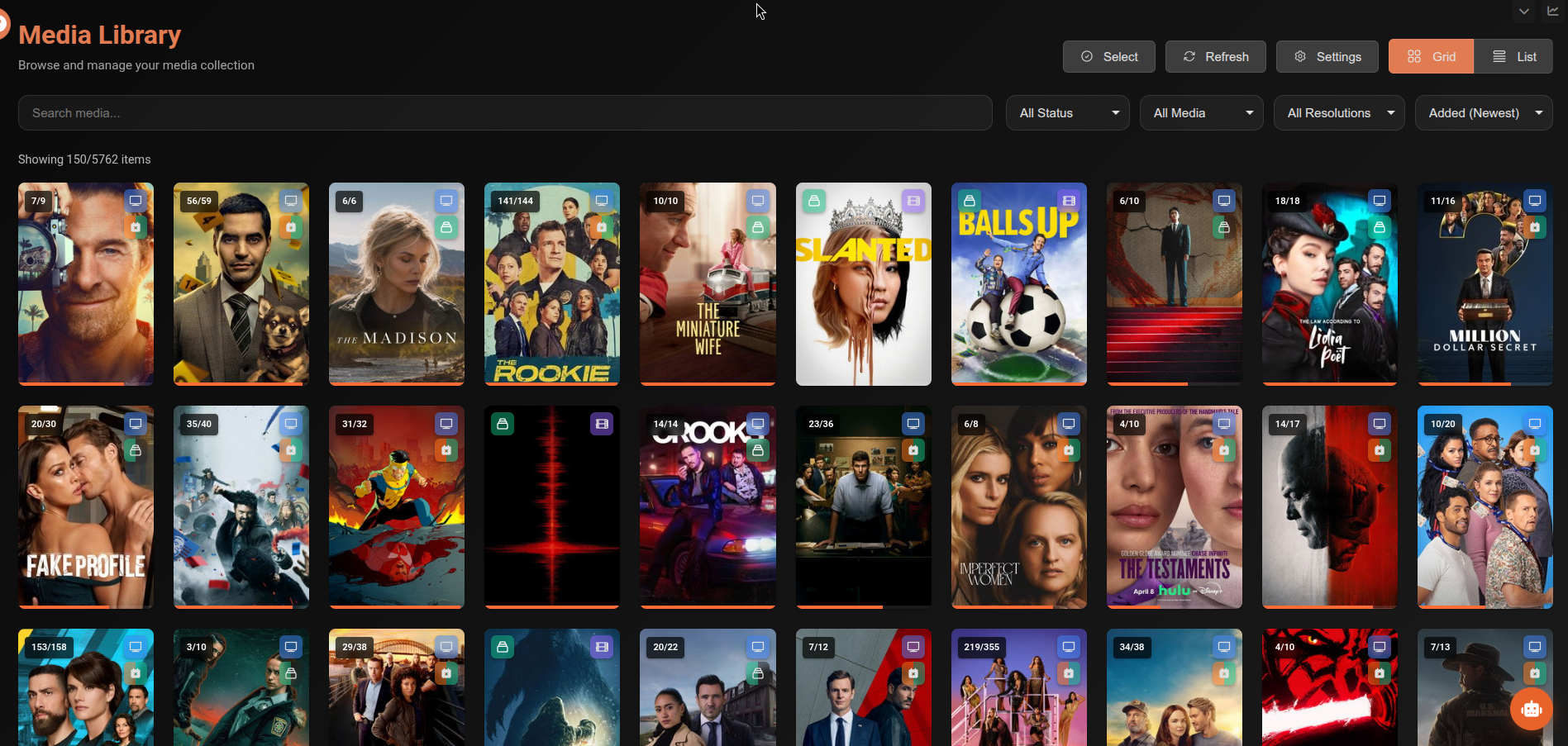
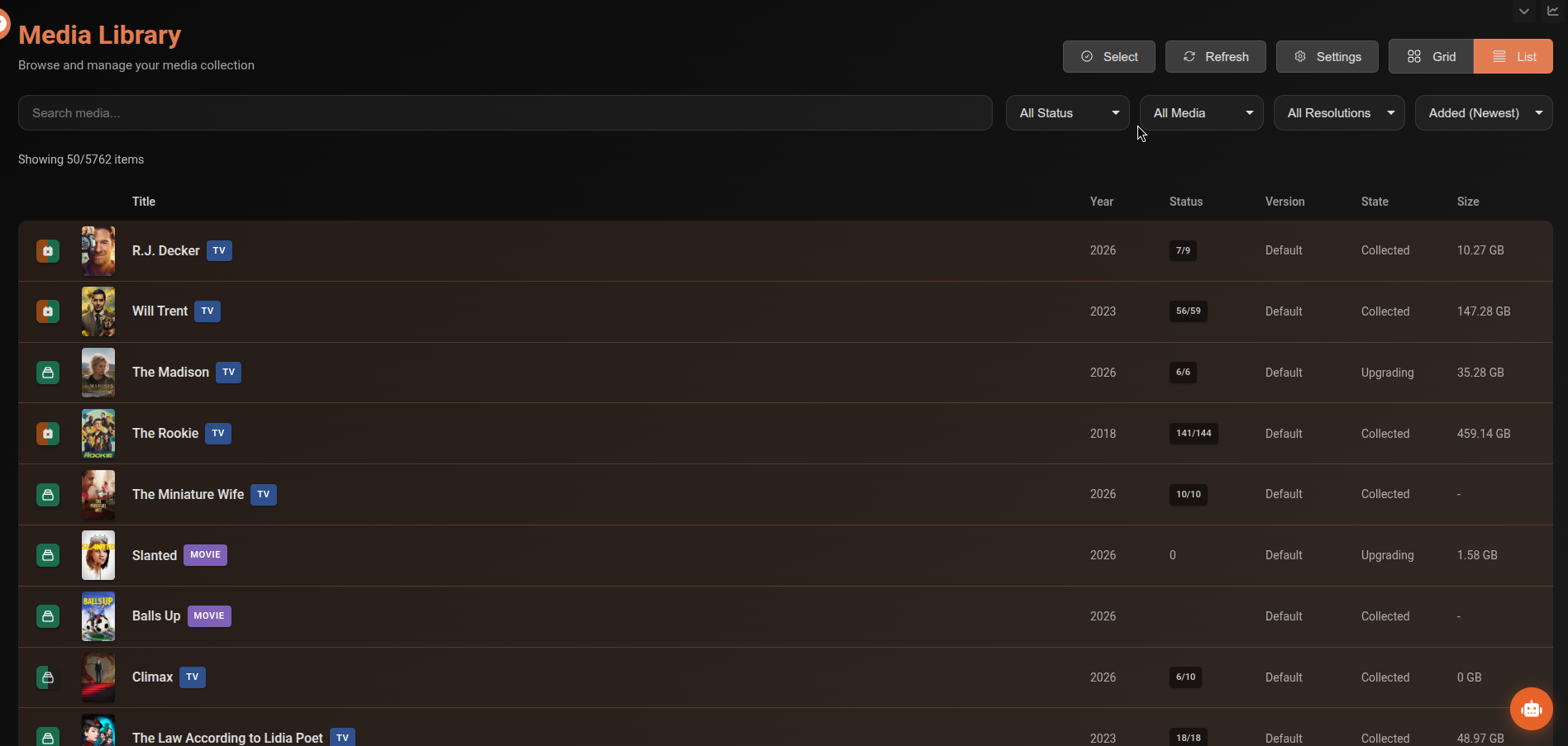
Toggle between Grid view (poster-based) and List view (table-based) using the buttons in the toolbar.
Displays poster art with status badges overlaid. Good for browsing visually.
Displays items in a table with columns for title, year, type, status, version, and more. Better for bulk operations.
Filtering & sorting
| Filter | Options |
|---|---|
| Search | Text search on title |
| Status | All, Collected, Missing, Blacklisted, Duplicates, Upcoming, Upgraded, Broken, NAS / Network* |
| Type | All Media, Movies, TV Shows |
| Resolution | All, 4K (2160p), 1080p, 720p, 480p, Unknown |
| Sort | Title A–Z, Title Z–A, Year (Newest), Year (Oldest), Added (Newest), Added (Oldest) |
* The NAS / Network filter option only appears when NAS path prefixes are configured in Settings → Advanced Settings → Library Management → NAS / Network Drive Paths.
When Duplicates is selected an additional filter appears:
| Duplicates filter | Shows |
|---|---|
| All States | All duplicate entries |
| Collected Only | Only collected duplicates |
| Blacklisted Only | Only blacklisted duplicates |
NAS / Network filter
When NAS paths are configured, selecting NAS / Network shows only Collected or Upgrading items whose location_on_disk starts with one of the configured prefixes. Useful for auditing which items are stored on network drives rather than your debrid mount.
Bulk operations
The toolbar also contains:
| Button | Description |
|---|---|
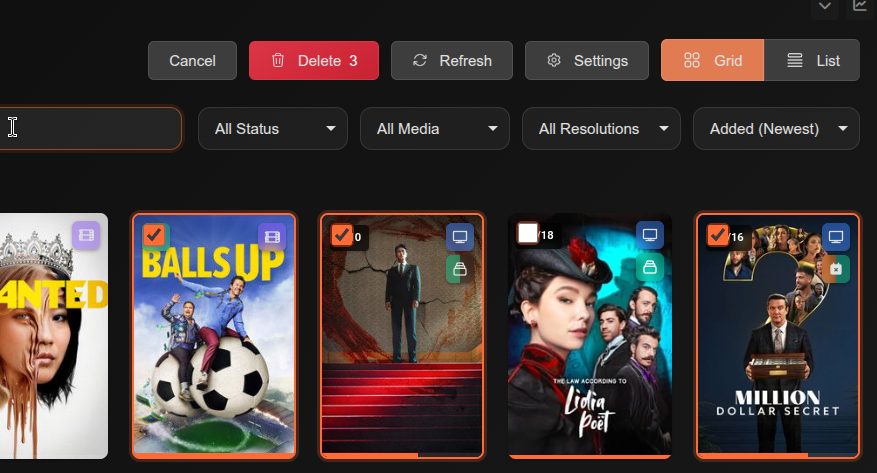
| Select | (Admin) Toggle multi-select mode |
| Delete | (Admin) Delete selected items — badge shows count |
| Refresh | Reload library data |
| Settings | (Admin) Open Library Manager Settings |
| Grid / List | Toggle view mode |
Click Select (admin only) to enter multi-select mode. Select items then use the Delete button to remove them in bulk. A badge on the button shows how many items are selected.
Movie detail page
Clicking a movie opens its full detail page with:
- Poster, backdrop, title, rating, certification, runtime, genres
- Version, file path, and date added
- Links to TMDB, IMDb, and Trakt
- Trailer button (when available)
- Cast section (collapsible)
- File list with size information
Movie actions
| Button | Permission | Description |
|---|---|---|
| Open in Discover | All | Open the movie in the Discover page |
| Search for Movie | User+ | Manually trigger a scrape for this movie |
| Request Movie | User+ | Request a specific version |
| Refresh Metadata | User+ | Re-fetch metadata from TMDB |
| Replace Movie | Admin | Replace the current file with a new torrent |
| Delete Files | Admin | Delete the movie files |
| Delete Movie | Admin | Remove the movie from the library entirely |
TV Show overview
The shows overview page lists all distinct shows in your library. Each show can be expanded to show collection progress per version.
Filters
| Filter | Options |
|---|---|
| Alphabet | A–Z, #, All — jump to shows starting with a letter |
| Version | Checkboxes per version — filter shows by which version they use |
| Collection Status | All, Collected (fully), Uncollected (partial or missing) |
Per show
Each show entry shows:
- Show title and IMDb ID
- Total episode count
- Collection progress per version (e.g.
12/13 episodes) - Search for Show button if any episodes are missing
TV Show detail page
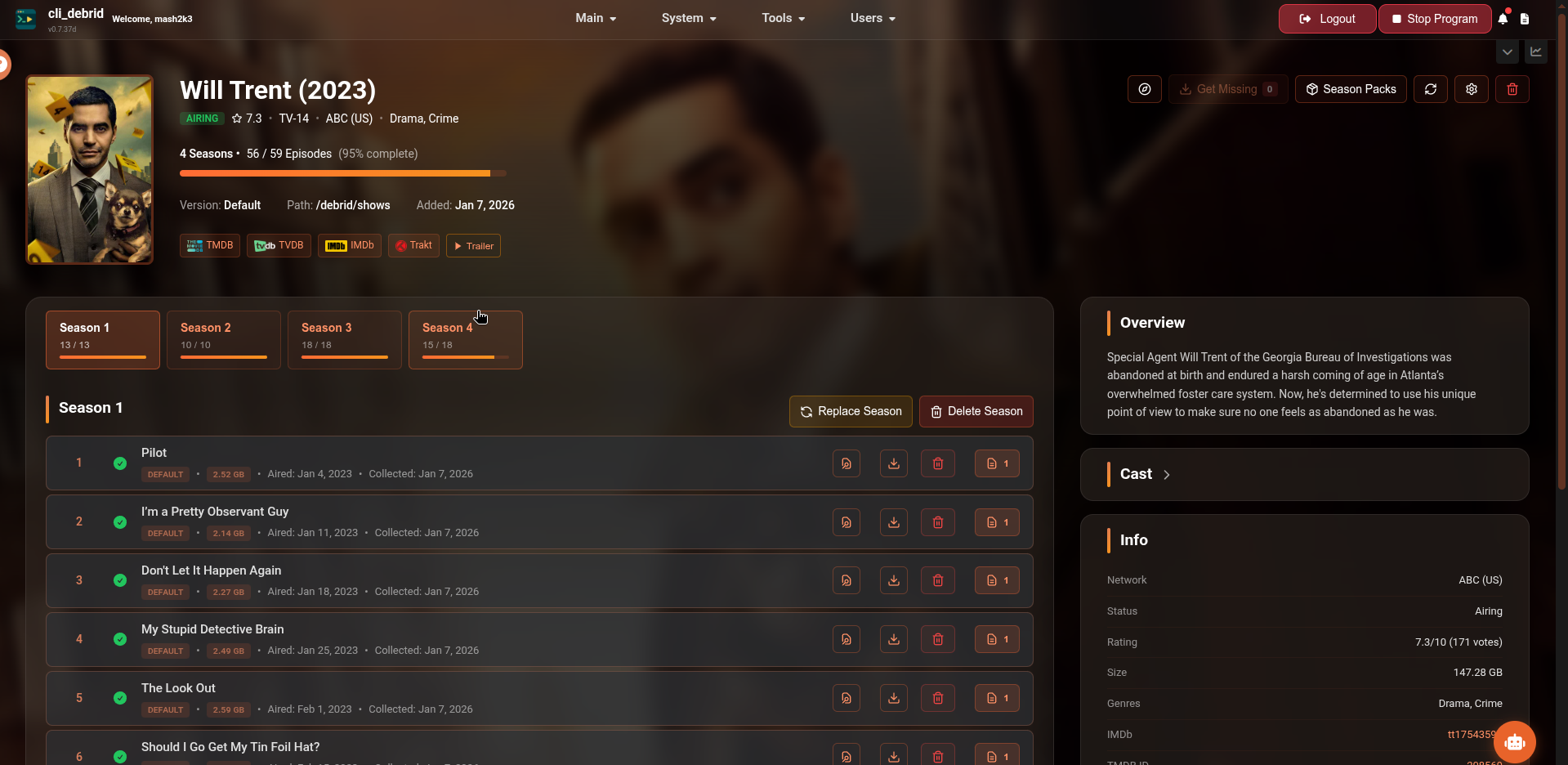
Clicking a show opens its full detail page with:
- Poster, backdrop, title, status badge (e.g. Ended), rating, network, genres
- Collection progress bar — episodes collected / total with percentage
- Season tabs — each season listed with its episodes
- Version, file path, and date added
- Links to TMDB, TVDB, IMDb, and Trakt
- Trailer button (when available)
- Cast section (collapsible)
Show actions
| Button | Permission | Description |
|---|---|---|
| Open in Discover | All | Open the show in the Discover page |
| Get Missing | User+ | Search for all missing episodes (badge shows count) |
| Season Packs | User+ | Search for full season pack torrents |
| Refresh Metadata | User+ | Re-fetch metadata from TMDB |
| Settings | Admin | Show-specific settings |
| Delete Show | Admin | Remove the entire show from the library |
Season and episode actions
Each season header and episode row includes an orange magnet icon button that opens Magnet Assign pre-filled with the correct show, season, episode, and version. Use this to manually assign a torrent to a specific season or episode when the scraper can't find one automatically.
Ghostlist
Ghostlist Mode marks deleted items as ghosted in the database instead of fully removing them. This prevents dynamic content sources (Trakt, Overseerr, Plex Watchlist, etc.) from automatically re-adding content you've deleted.
Automatic blacklist entry
When you ghostlist a movie or show, it is automatically added to the Manual Blacklist by IMDb ID. This means it will not be re-downloaded even if it appears in a content source that bypasses the ghostlist check.
When Ghostlist Mode is off, deleted content can be re-added by content sources. Use Remove From Content Sources in that case to explicitly remove items from your lists during deletion — though this makes deletion slower.
Enable in Settings → Additional Settings → Library Manager → Ghostlist Mode, or via the Settings button directly in the Library toolbar.