Plex Setup
This guide covers adding your Debrid library to Plex so content downloaded through CLI_Debrid appears in your Plex server automatically.
Mount required first
Your debrid library must be mounted before Plex can see it. Set up either Zurg + rclone or Decypharr first.
Prerequisites
- Plex Media Server installed and running
- A working debrid mount (Zurg + rclone or Decypharr) at your mount path
- The mount path accessible inside the Plex docker container
Step 1 — Expose the debrid mount to Plex
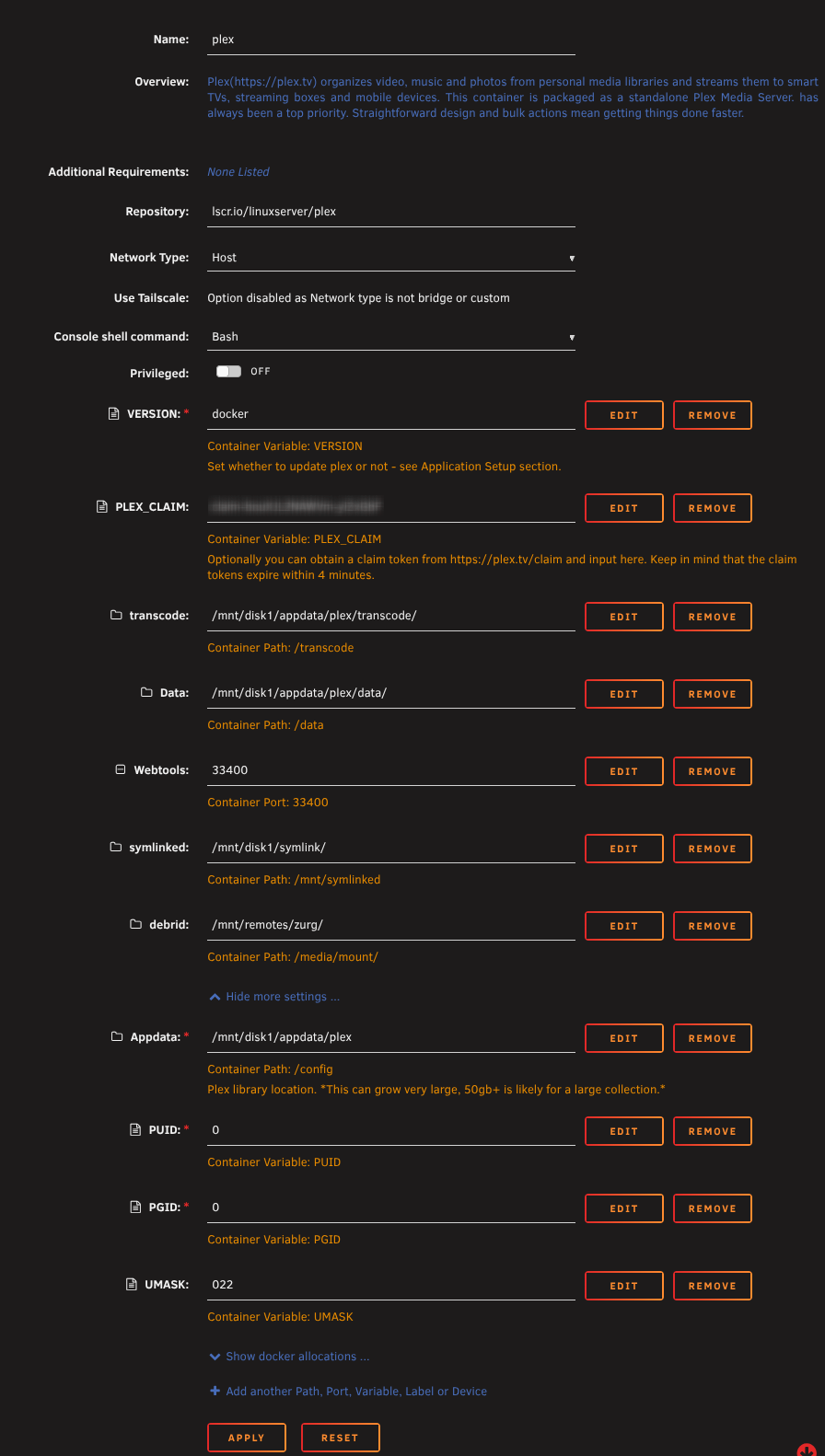
The Plex docker container needs to be able to see your debrid mount and — if using symlink mode — your symlink folder. Add path mappings to your Plex docker:
| Mode | Host Path | Container Path |
|---|---|---|
| Both modes | Your debrid mount (e.g. /mnt/remotes/zurg) |
Must match cli_debrid exactly (e.g. /media/mount) |
| Symlink mode only | Your symlink folder (e.g. /mnt/symlinks) |
Must match cli_debrid exactly (e.g. /mnt/symlinked) |
Paths must match cli_debrid exactly
In symlink mode, symlinks created by cli_debrid point to files inside the debrid mount using the container path. Plex must mount both the debrid storage and symlink folder at identical container paths to cli_debrid — otherwise symlinks will appear broken.
Edit your Plex docker template and add the path mappings above.
services:
  plex:
    image: lscr.io/linuxserver/plex:latest
    container_name: plex
    network_mode: host
    volumes:
      - /path/to/your/debrid/mount:/media/mount:ro    # e.g. /mnt/cache/zurg, /mnt/data/debrid — must match cli_debrid
      - /path/to/your/symlinks:/mnt/symlinked:ro       # e.g. /mnt/disk1/TVShows — symlink mode only, must match cli_debrid
      - /path/to/plex/appdata:/config:rw               # e.g. /mnt/cache/appdata/plex
      - /path/to/plex/transcode:/transcode:rw          # e.g. /mnt/cache/appdata/plex/transcode
      - /path/to/plex/data:/data:rw                    # e.g. /mnt/cache/appdata/plex/data
    environment:
      - TZ=America/New_York
      - VERSION=latest
      - PUID=0
      - PGID=0
      - UMASK=022
    restart: unless-stopped
    devices:
      - /dev/dri:/dev/dri                              # optional — hardware transcoding
Unraid users
Use the actual pool path for the mount (e.g. /mnt/cache/zurg or /mnt/downloadcache/zurg), not /mnt/user/zurg. This avoids array startup issues.
Paste the same compose file from the Docker Compose tab into your stack editor and deploy.
- Portainer: Stacks → Add Stack → paste → Deploy
- Dockge: + Compose → paste → Deploy
- Dockhand: Stacks → + Create → paste → Create & Start
Plex has a native Windows installer.
- Download from plex.tv/media-server-downloads
- Run the installer and follow the setup wizard
- Plex will be available at
http://localhost:32400/web
Symlinks on Windows
Plex does not support symlinks on Windows. If using symlink mode, use Jellyfin instead.
Restart Plex after making this change.
Step 2 — Add Debrid libraries
In Plex, go to Settings → Manage → Libraries.
You need to add two new libraries — one for Debrid movies, one for Debrid TV shows. These are separate from any existing local libraries you have.
Add the Movies library
- Click Add Library
- Select type: Movies
- Name it:
Movies-DB(or any name you prefer) - Click Next
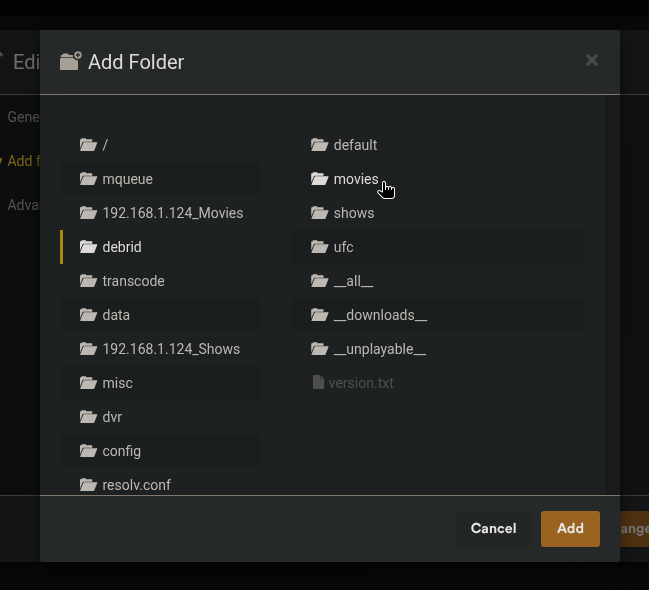
- Click Browse for media folder and select
/data/movies - Click Add
On the Advanced tab, configure:
- Scanner: Plex Movie Scanner
- Agent: Plex Movie
- ☑ Enable video preview thumbnails — off (reduces API calls)
- ☑ Empty trash automatically after every scan — off
Click Add Library.
Add the TV Shows library
- Click Add Library
- Select type: TV Shows
- Name it:
TV Shows-DB - Add folder:
/data/shows - Same Advanced settings as above
Click Add Library.
Step 3 — Configure Plex library scan settings
Go to Settings → Settings → Library and enable:
| Setting | Value |
|---|---|
| Scan my library automatically | ☑ On |
| Run a partial scan when changes are detected | ☑ On |
| Scan my library periodically | ☑ On |
| Allow media deletion | ☑ On |
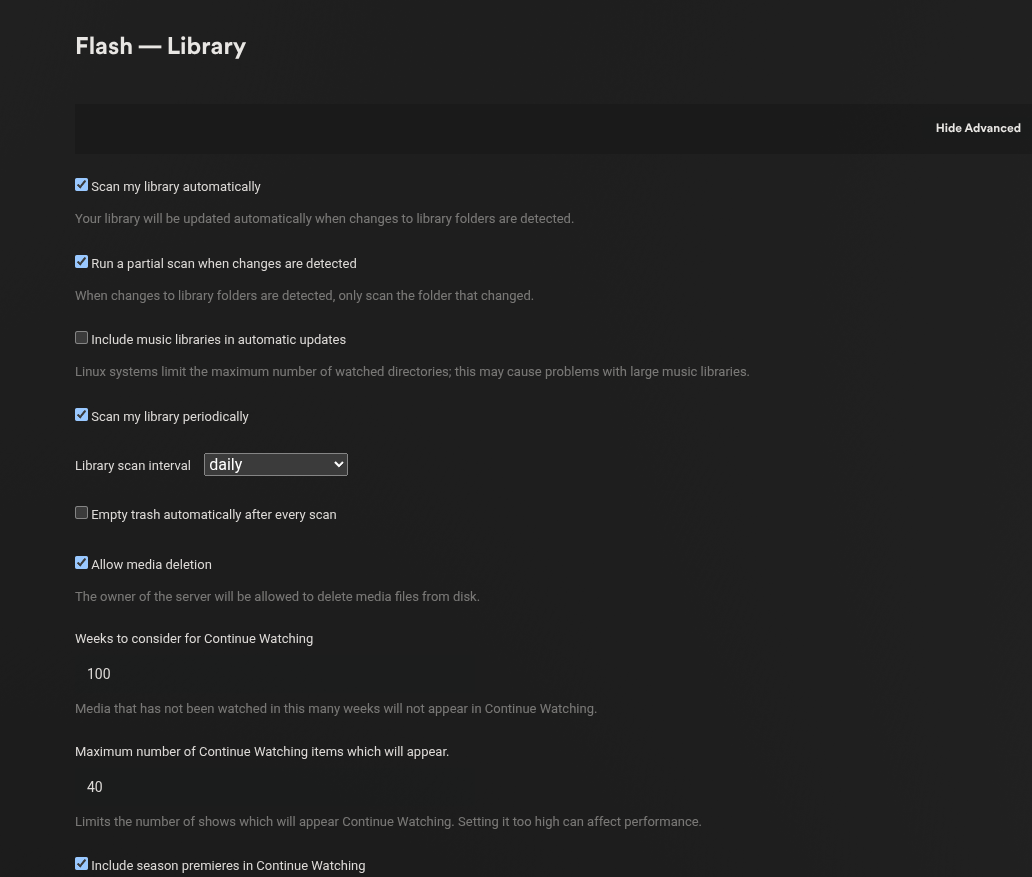
These settings ensure Plex picks up new content automatically. Zurg, Decypharr, and cli_debrid each handle library notifications via their own methods.
Step 4 — Pin libraries to home screen (optional)
To see Debrid movies and TV shows in your Plex Home Recently Added section alongside your local content:
- Go to your Plex Home page
- In the right sidebar, click More
- Find
Movies-DBin the list, click the three dots → Pin - Repeat for
TV Shows-DB
Finding your Plex token
You'll need your Plex token for plex_update.sh in the Zurg setup.
- Log in to app.plex.tv in your browser
- Go to any media item → click the ⋮ menu → Get Info
- Click View XML — a new tab opens
- In the URL bar, find
X-Plex-Token=and copy the value after the=
Alternatively:
- Open your browser's Developer Tools (F12)
- Go to the Console tab
- Paste:
window.localStorage.getItem("myPlexAccessToken") - Press Enter — your token is printed
Troubleshooting
New content not appearing in Plex
- Manually trigger a scan: go to your
Movies-DBorTV Shows-DBlibrary → click ⋮ → Scan Library Files - After one manual scan, automatic scanning usually takes over
Library folder says "empty" or "no media found"
- Verify the mount has content: browse to your mount path (e.g.
/mnt/user/zurg/movies) on your server - Check the path mapping in your Plex docker — container
/datamust point to your debrid mount
Items appear with wrong metadata
- Right-click the item in Plex → Fix Incorrect Match and search manually
- This is normal for some non-English or obscure titles