Tools
The Tools page collects the one-off tools for fixing the library, queues and symlinks. Open it from Tools → All Tools.
It replaces the old Debug page together with Maintenance (backups, cleanup and the danger zone) and the Diagnostics tab of the Performance Dashboard (token status, rate limits and API calls).
Read before you run
Many tools change your database or files permanently. Read each card's description first, and use Dry Run where a card offers it.
The page has six tabs: Library, Queues & tasks, Symlinks, Plex Labels, Usenet and More tools.
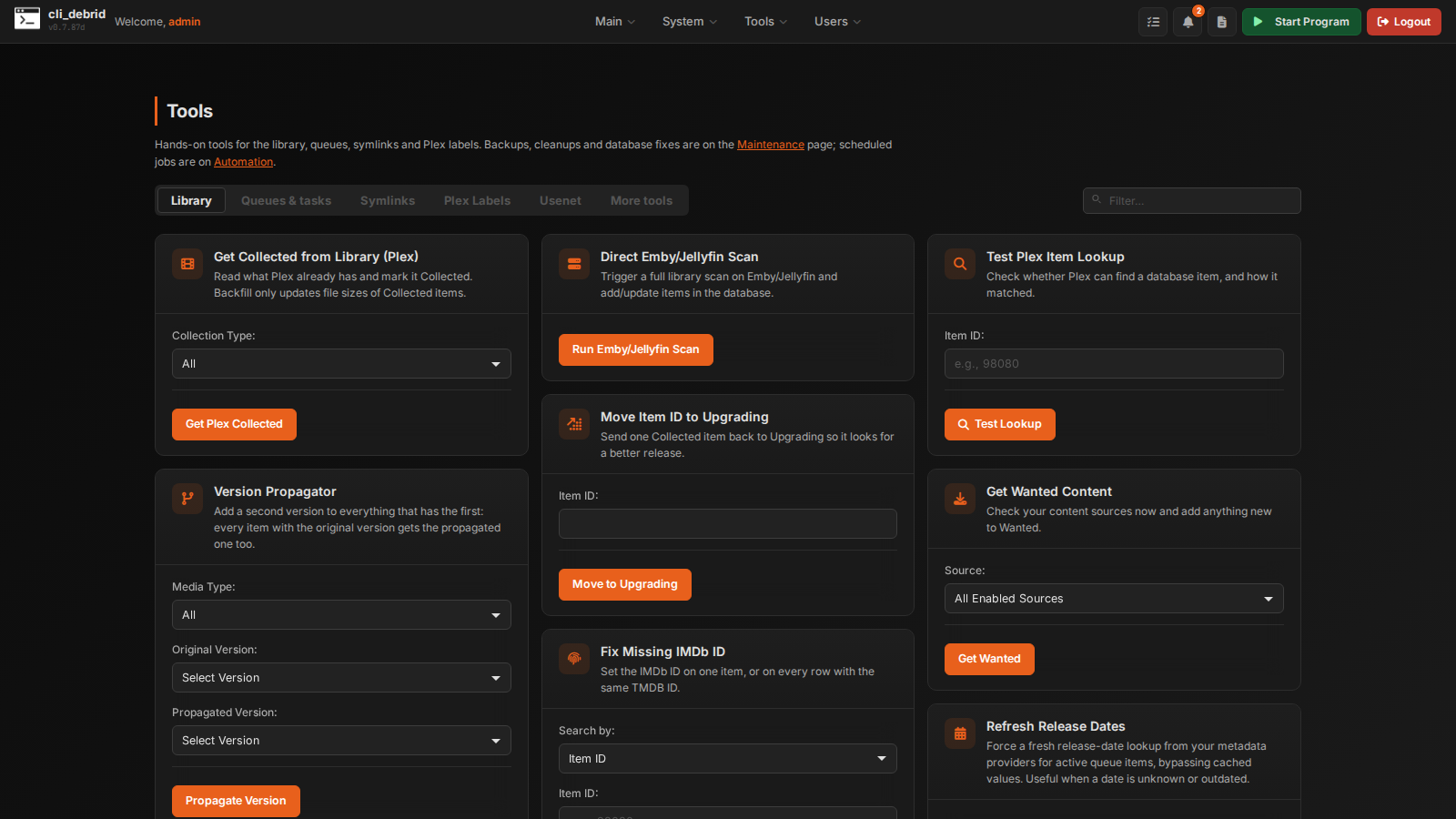
Library
Get Collected from Library (Plex)
What it does: Scans your Plex library and imports any items that are in Plex but not yet in cli_debrid's database.
When to use: - After restoring a database backup — re-import what Plex already has - When items were added manually to Plex outside cli_debrid
Modes: - All — scan the entire library - Recent — only scan recently added items - Backfill — update file sizes for existing database entries
Version Propagator
What it does: Changes all items currently assigned one version to a different version in bulk.
When to use: You renamed a version profile or want to migrate everything from an old version to a new one.
How to use: 1. Select the Media Type (All, Movies Only, Episodes Only) 2. Select the Original Version (what items currently have) 3. Select the Propagated Version (what to change them to) 4. Click Propagate Version
Bulk Subtitle Scan
What it does: Scans your symlinked library for missing subtitles and downloads them, using the settings under Settings → Subtitles.
When to use: You turned subtitles on after building your library, or added languages.
Direct Emby/Jellyfin Scan
What it does: Triggers a full library scan on your Emby or Jellyfin server and imports any new items into the database.
When to use: Items are in Emby/Jellyfin but not showing in cli_debrid's database.
Move Item ID to Upgrading
What it does: Moves a specific item directly to the Upgrading queue by Item ID.
When to use: You want to force a single item to be checked for an upgrade immediately.
Fix Missing IMDb ID
What it does: Adds or updates the IMDb ID for a media item.
When to use: An item has no IMDb ID and features like overlays, upgrading, or battery metadata aren't working for it.
How to use:
1. Enter the Item ID (single row) or TMDB ID (updates all matching rows)
2. Enter the correct IMDb ID in ttXXXXXXX format
3. Click Fix
Test Plex Item Lookup
What it does: Tests whether a specific database item can be matched in your Plex library.
When to use: Overlays aren't being applied to a specific item — test if cli_debrid can find it in Plex.
How to use: 1. Find the Item ID in the Database Browser 2. Enter the Item ID 3. Click Test — it will show whether the match succeeded and via what method (IMDb, TMDB, or title+year fallback)
Get Wanted Content
What it does: Manually triggers a check of all enabled content sources and adds any new items to the Wanted queue.
When to use: You just added a new content source and want to pull its items immediately without waiting for the next cycle.
Refresh Release Dates
What it does: Forces a fresh release-date lookup from your metadata providers for items in the active queues, skipping cached values.
When to use: Items that should have moved from Unreleased to Wanted haven't — their stored release dates may be outdated.
Queues & tasks
Run Task Manually
What it does: Immediately triggers any scheduled background task without waiting for its scheduled time.
When to use: You want to force an immediate run of things like: - Get Wanted Content (re-check all sources now) - Update show status (ended/airing) - Poster overlays - Battery sync
How to use: 1. Select the task from the dropdown 2. Click Run 3. Check the logs for output
You can also run any task with Run now on the Automation page.
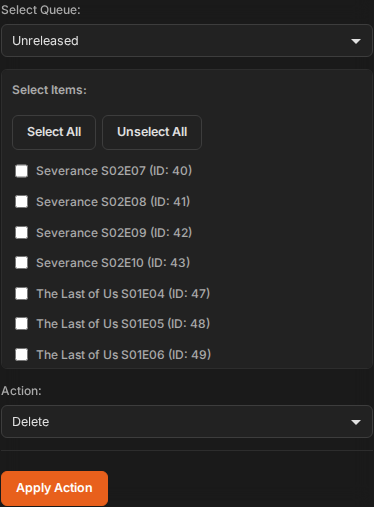
Bulk Queue Actions
What it does: Lets you select items from any queue and move them to another queue or delete them in bulk.
When to use: - Move all Sleeping items back to Wanted - Delete all items in a specific state - Force-move items that are stuck
How to use: 1. Pick the queue under Select Queue 2. Items populate automatically 3. Select items (shift+click for range, ctrl/cmd+click for individual) 4. Choose Delete or Move to... under Action 5. If moving, pick the Target Queue 6. Click Apply Action
Symlinks
For Symlinked/Local mode only.
Symlink Verification Queue
What it does: Shows the current symlink verification status — total files, verified count and percentage, unverified count, and a table of queued items with title, filename, date added, and attempts.
Buttons: - Refresh Queue — reload the current queue state - Verification Scan — trigger a new verification scan
Convert Library to Symlinks
What it does: Converts an existing Plex library to use symlinks. Streams live progress via Server-Sent Events showing files scanned, media found, items processed, DB entries added, symlinks created, and any errors.
One-time, irreversible
This is intended only for converting existing Plex libraries and should only be done once. It cannot be undone.
Rclone Mount to Symlinks
What it does: Scans an rclone mount path, creates database entries, and generates symlinks for all found files. Streams live progress.
When to use: Migrating from a non-cli_debrid setup where you have a working rclone mount but no database.
Inputs: Rclone Mount Path, Symlink Base Path, optional Dry Run.
Duplicate Symlink Targets
What it does: Scans your TV Shows symlinks for episodes that point at the same underlying file. That usually means a season pack was matched wrongly, so several "different" episodes play the same content.
How to use: The scan itself is read-only. For each group it finds, you can rescrape the affected episodes, which deletes them fully and sends them back to Wanted.
Resync Symlinks with New Settings
What it does: Regenerates symlinks for all collected items using the current symlink settings. Can optionally update stored original file paths before regenerating.
When to use: You changed your symlink folder structure settings and want to rebuild all symlinks to match.
Modify Symlink Base Paths
What it does: Updates the base paths for symlinks and original file locations across all database entries.
When to use: You moved your mount to a different path, or you moved your symlink folder.
How to use: 1. Enter the Old Base Path (what the paths currently say) 2. Enter the New Base Path (what they should say) 3. Click Dry Run to preview 4. Click Apply
Symlink Library Recovery
What it does: Reconstructs database entries from your existing symlink folder structure — useful if you lost your database but still have your symlinks. Your symlink settings under Settings → Library & Files must match the folder structure you're recovering.
Plex Labels
Plex Labels Management
What it does: View, apply and remove Plex labels by hand, and sync labels from your content sources. See Plex Labels for how labels work.
| Section | What it does |
|---|---|
| View Items by Label | Lists the items that carry a label |
| Bulk Apply Labels from Source | Applies a content source's label to all of its items |
| Bulk Remove Labels | Removes a label from every item |
| Orphaned Label Cleanup | Removes labels that no content source uses any more |
| Sync Labels from Content Sources | Re-applies every source's labels now |
| Backfill Resolution Data | Fills in missing resolution (2160p, 1080p, 720p) from file paths, which the Upgrade Hub and overlay badges use |
Usenet
Migrate between usenet providers
What it does: Copies each item's stored .nzb from cli_mount to NzbDAV or the other way round. The new provider fetches it from Usenet again; nothing is searched for again.
When to use: You're switching Usenet mount provider. See Usenet Migration for the fields and the steps afterwards.
More tools
Links to tools that have a page of their own:
| Tool | What it's for |
|---|---|
| Scraper Tester | Run a search through your scrapers and see what each returns |
| Reverse Parser | Work out which version your existing files belong to |
| Manual Assign | Assign a torrent or NZB to items by hand |
| Manual Blacklist | Titles that should never be requested |
| Create a Symlink | Make a single symlink by hand |
| Metadata Lookup | See the metadata stored for a title |
| Overlays | Design the badges drawn on your posters |
| Trakt Friends | Link friends' Trakt accounts |
| Plex User Tokens | Collect Plex tokens for friends' watchlists |
Common troubleshooting workflows
Nothing is being downloaded
- Open the Performance Dashboard Diagnostics tab: are you rate limited?
- Open its Connections tab: are all your scrapers and services green?
- Check the Database page: are items in the Wanted state?
- If Wanted is empty, run Get Wanted Content (Library tab)
- Check the Logs page for errors
Items stuck in Sleeping
- Open Bulk Queue Actions (Queues & tasks tab)
- Select the Sleeping queue
- Select all items
- Move them to Wanted
- They're retried on the next cycle
Duplicate episodes in library
- Go to Maintenance → Manage Duplicate Versions
- Select Keep best quality, delete rest
- Add any protected terms (e.g.
REMUX) to Exclude Patterns - Run a Dry Run first
- Apply
If several episodes play the same file, use Duplicate Symlink Targets (Symlinks tab) instead.
Overlays not working for a specific item
- Run Test Plex Item Lookup with the Item ID
- If it fails, use Fix Missing IMDb ID to give the item a valid IMDb ID
- Run Sync Library again from the Overlays page