Debrid Manager
The Debrid Manager gives you full visibility and control over your debrid account — active downloads, your torrent library, backup management, and integrity audits.
Regex supported
All text filter inputs across every tab support regex patterns.
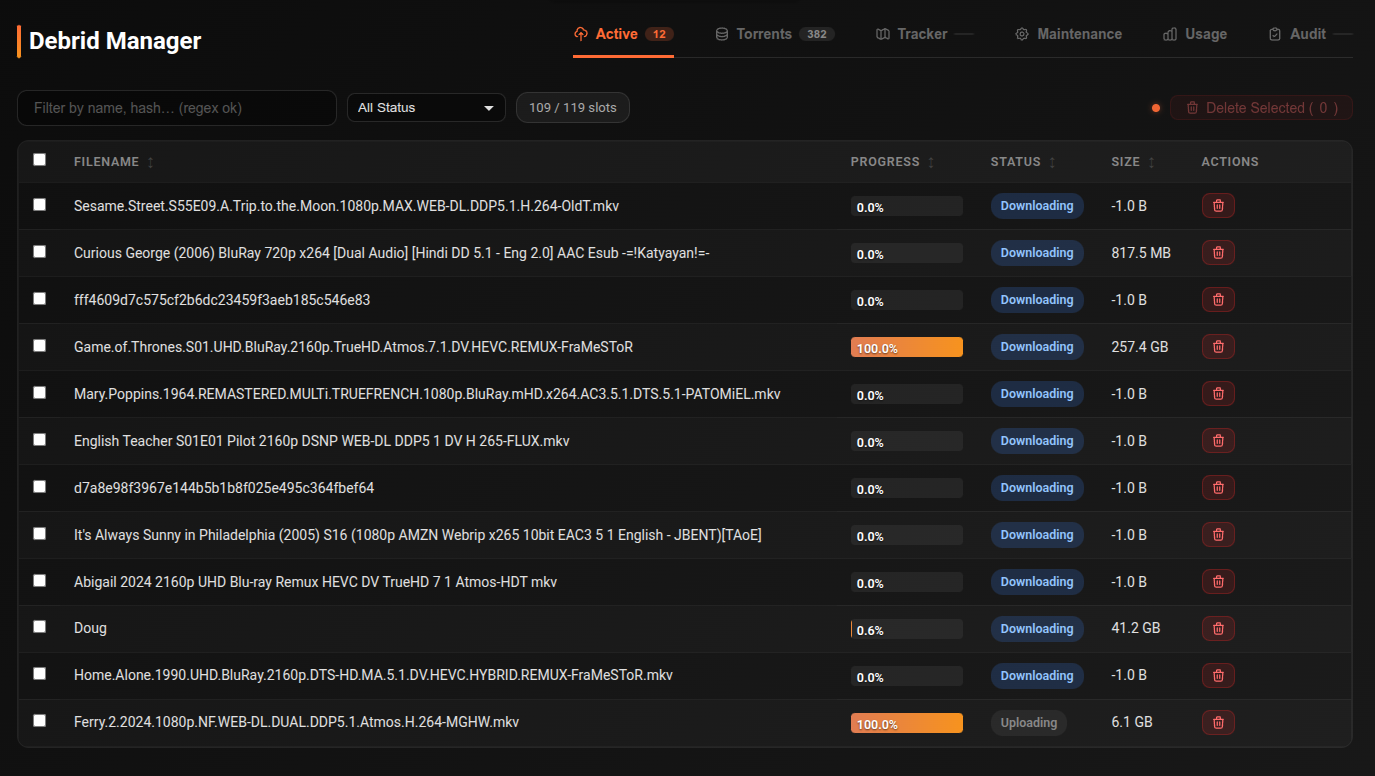
Active
Shows all currently active downloads with live status. Auto-refreshes continuously — a poll indicator shows when updates are running.
Filters:
| Filter | Options |
|---|---|
| Name / Hash | Text or regex search |
| Status | All, Downloading, Error, No Files Selected |
Columns: Filename, Progress, Status, Size, Actions
Select items and use Delete Selected for bulk removal, or delete individual items per row.
Torrents
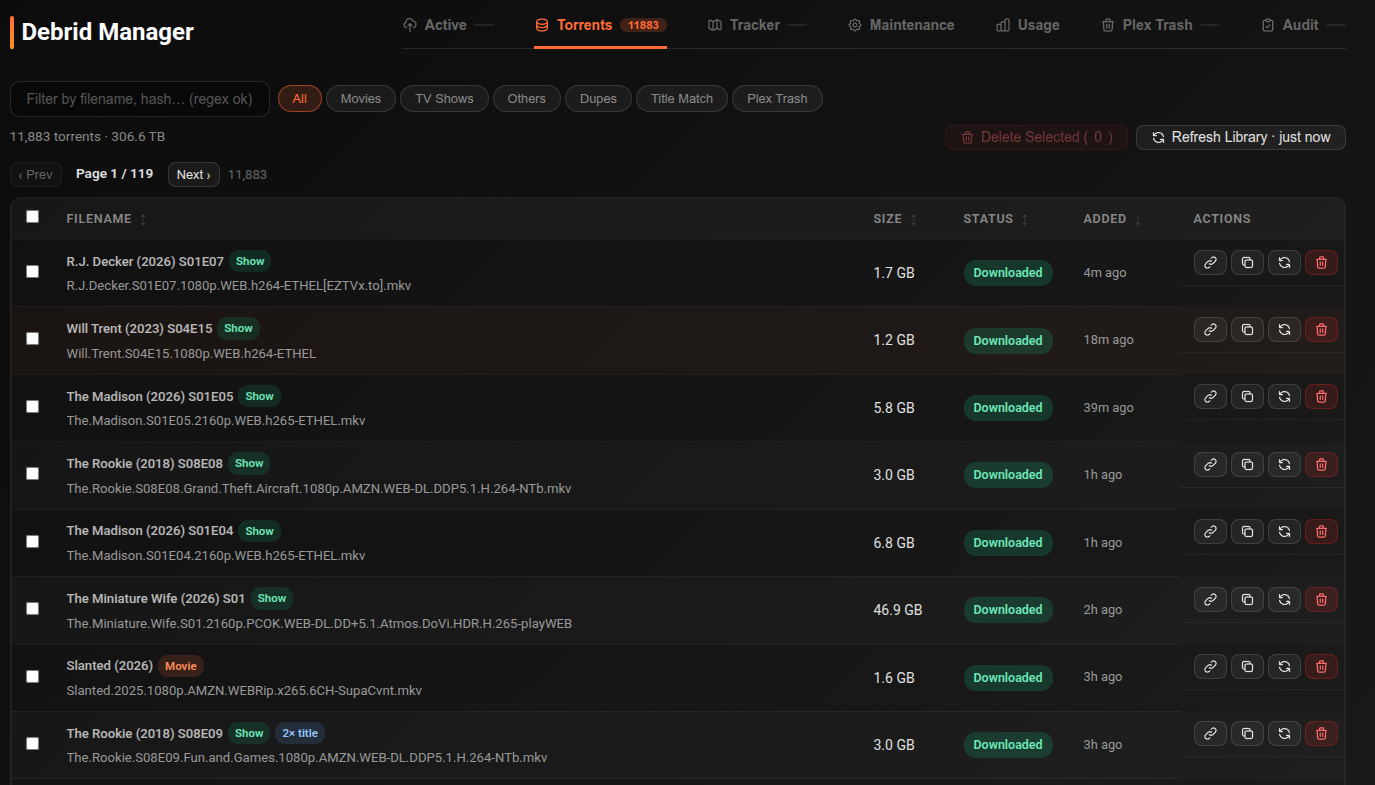
Your full debrid torrent library with pagination.
Filters:
| Filter | Options |
|---|---|
| Search | Text or regex on filename or hash |
| Type | All, Movies, TV Shows, Others |
| Dupes | By Hash, By Title Match |
| Plex Trash | Show only items in Plex's trash |
Per-item actions: Delete, Reinsert (re-add to debrid with file selection)
Bulk actions: Delete Selected, Delete All Dupes, Reinsert All, Reload Library
Multi-page selection is supported — use Select all N matching to select across pages.
Tracker
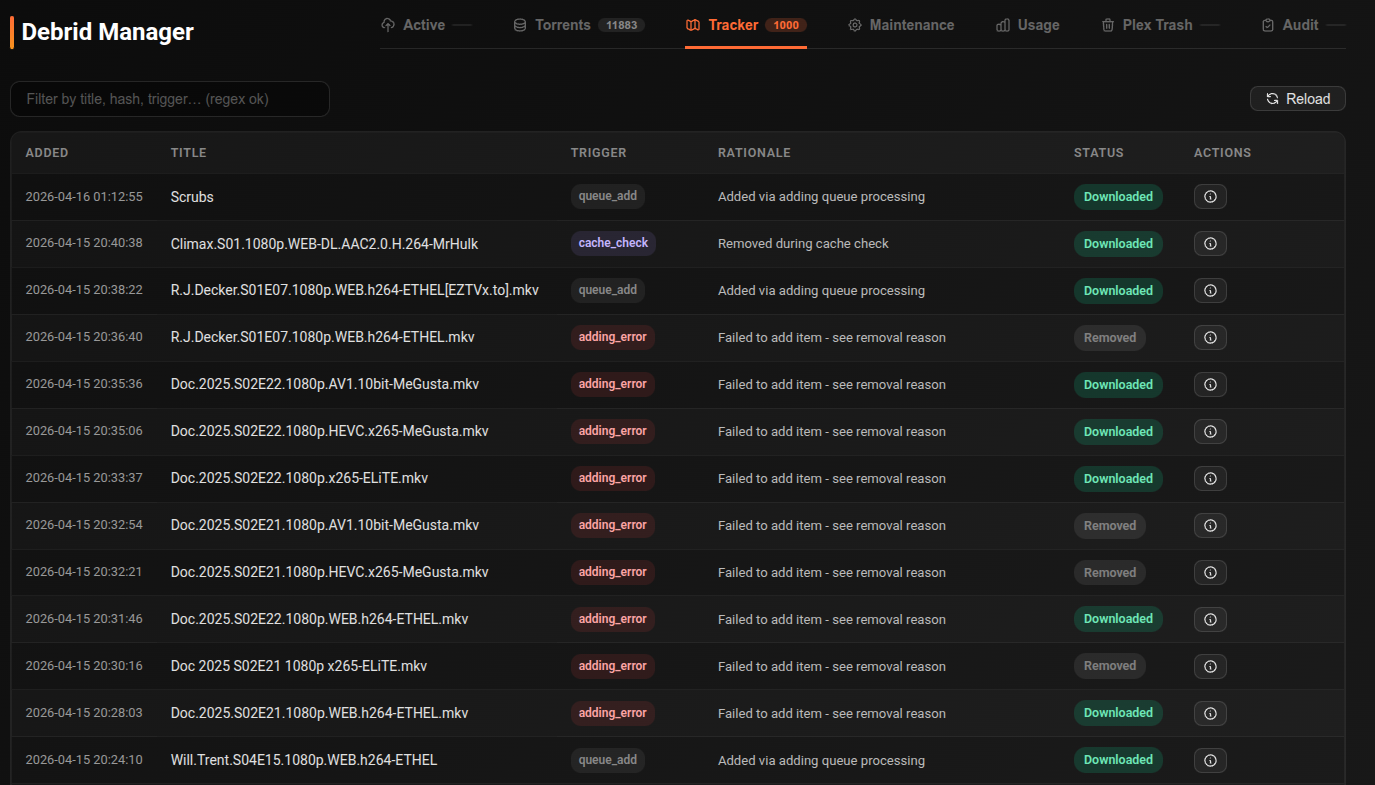
A chronological log of every torrent submitted through cli_debrid.
Columns: Added (timestamp), Title, Trigger, Rationale, Status
Filter by title, hash, or trigger using text/regex search.
Click any row to open the full detail modal — includes item snapshot, selected files, debrid info, and trigger details.
Maintenance
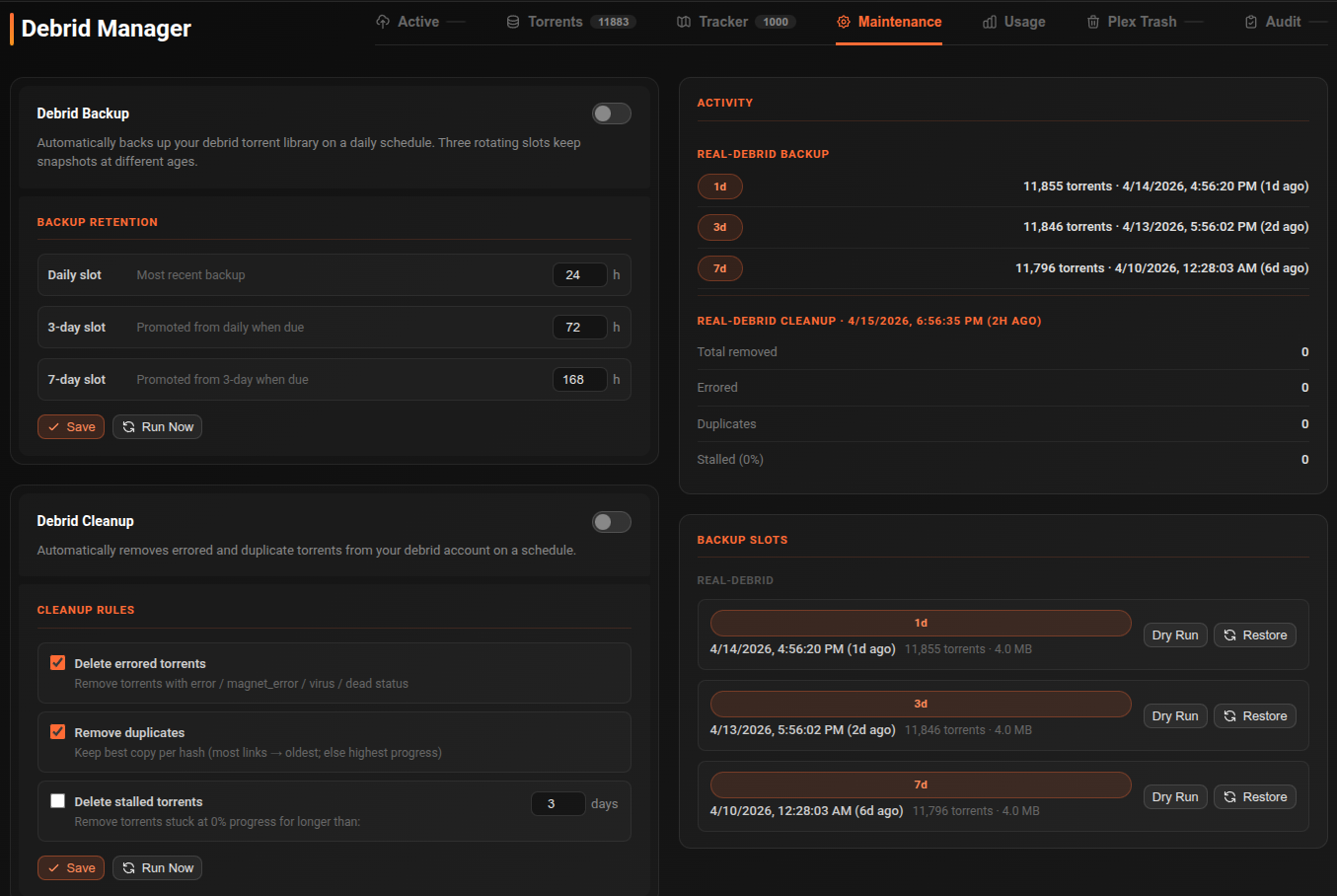
Debrid Backup
Scheduled task
Runs automatically every 24 hours by default. Adjust the interval or trigger manually in the Task Manager under the Features tab.
Automatically backs up your debrid torrent library on a rotating schedule.
| Slot | Default retention |
|---|---|
| Daily | 24 hours |
| 3-day | 72 hours |
| 7-day | 168 hours |
Retention hours are configurable per slot. Click Run Now to trigger an immediate backup. Click Restore on any slot to re-add missing torrents — additive only, won't remove existing ones.
Each backup slot also has a → Usenet button. Use the Version dropdown in the Backup Slots header to select which quality filter applies when searching for replacement NZBs. See Usenet Migration for details.
An activity log on the right shows recent backup events.
Debrid Cleanup
Scheduled task
Runs automatically every 24 hours by default. Adjust the interval or trigger manually in the Task Manager under the Features tab.
Automatically removes problematic torrents based on configurable rules:
| Rule | Description |
|---|---|
| Delete Errored | Remove torrents with error, dead, or virus status |
| Delete Duplicates | Remove duplicate hashes, keeping the most recent |
| Delete Stalled | Remove torrents stuck at 0% for longer than N days (1–30, default 3) |
Click Run Now to trigger cleanup immediately. See Task Manager (linked in the scheduler notice) to configure the cleanup schedule.
Plex Trash
Note
Only visible when Plex is configured.
Shows items that have been removed from Plex but may still exist in debrid, split into two groups:
Still in debrid — items Plex trashed that are still in your debrid account:
| Action | Description |
|---|---|
| Scan All | Trigger a Plex directory scan for these items |
| Reinsert All Good | Re-add torrents that have a known match |
| Delete All Bad | Remove orphaned or unmatched files |
| Delete All Good | Remove matched files from debrid |
Not in debrid — orphaned Plex items with no matching debrid torrent:
| Action | Description |
|---|---|
| Reinsert All | Re-add torrents using known magnet hash |
| Delete All | Permanently remove from Plex |
Use the ↺ Refresh button to force a fresh Plex trash scan.
Usage
Live account statistics from your debrid provider.
| Section | Shows |
|---|---|
| Account | Username, premium status, points/space/limits (provider-dependent) |
| Downloads | Active slots, all-time downloaded, daily reset timer |
| Today's Usage | Usage bar and daily usage amount |
| Traffic Details | Traffic history (Real-Debrid) |
| Live | Download/upload rate, peers connected (Debrid-Link only) |
| Limits | Per-day and per-30-day data and torrent limits (Debrid-Link only) |
Usenet
Requires Decypharr
The Usenet tab is only visible when a Usenet provider (Decypharr) is configured in Settings → Required Settings → Usenet Provider.
Shows the health of your Usenet NZB library and controls the repair engine.
Stats
| Stat | Description |
|---|---|
| Healthy | NZBs confirmed intact by Decypharr's repair API |
| Broken | NZBs with missing or corrupt segments |
| Unknown | NZBs not yet health-checked |
| Repaired | Items the repair engine has successfully replaced |
| Not Found | Items the repair engine couldn't find a replacement for |
Currently Broken
Click View Broken to expand a list of all broken entries, showing title and broken file count.
Controls
| Button | Description |
|---|---|
| Run Health Scan | Trigger Decypharr's health scan immediately |
| View Broken | Show/hide the currently broken list |
| Version dropdown | Select a version filter for replacement NZB searches |
| Fix Broken | Run the repair engine immediately |
Scheduled task
The repair engine runs automatically on a schedule. Enable and configure it in Task Manager under the Features tab — look for Repair Broken NZBs. Disabled by default.
Repair Activity Log
A chronological log of all repair attempts. Filter by outcome using the dropdown. Loads more entries with the Load More button.
See Usenet Migration for full details on migration, repair, and setup.
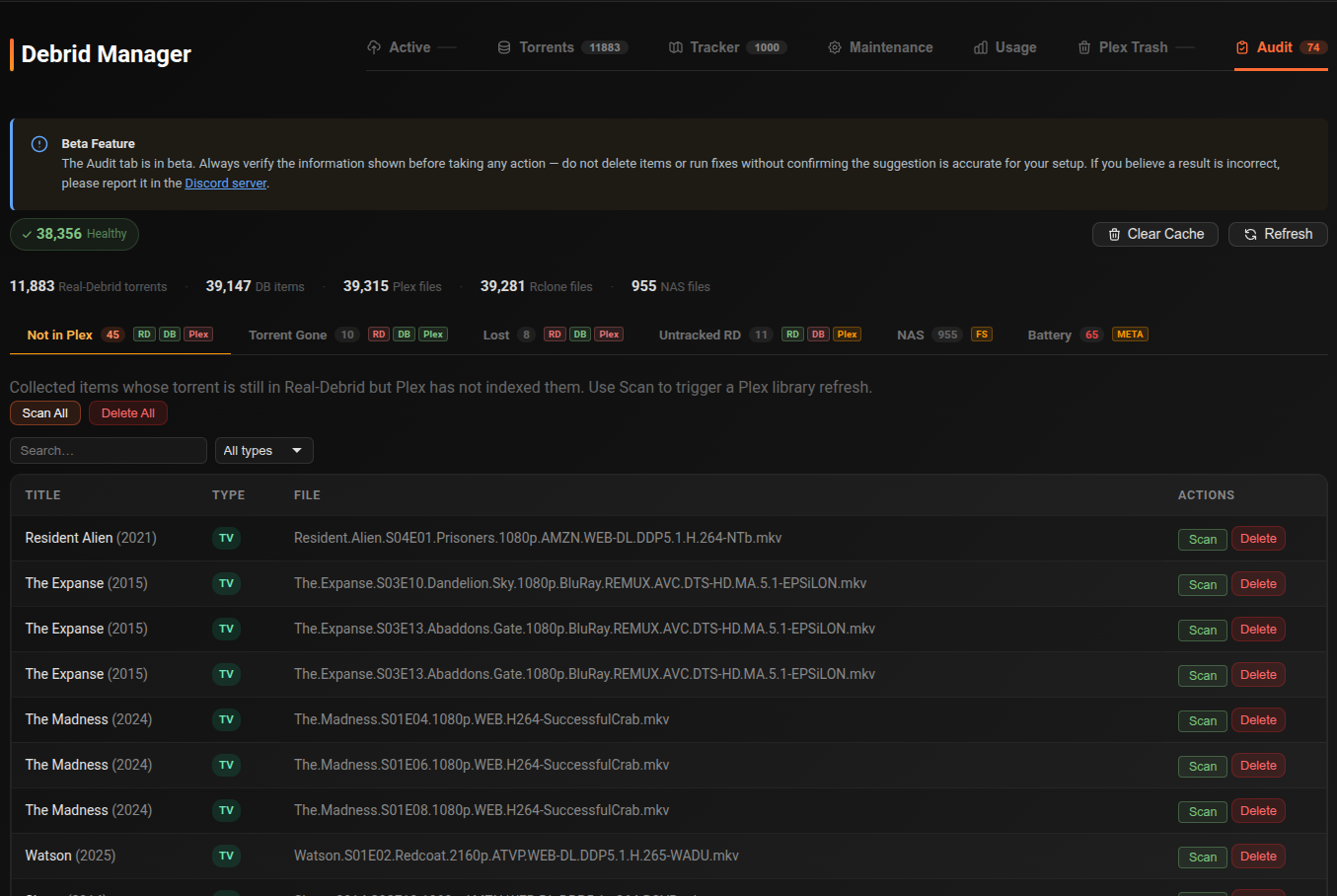
Audit
Library integrity auditing across your debrid account, database, and media server.
Beta feature
The Audit tab is in beta. Report issues in the Discord.
The stats header shows counts across: debrid torrents, database items, Plex/Jellyfin files, rclone files.
Reconcile sub-tabs
| Tab | Badges | Description |
|---|---|---|
| Not in Media Server | RD✓ DB✓ Plex✗ | Items in debrid and database but not found in Plex/Jellyfin |
| Torrent Gone | RD✗ DB✓ Plex✓ | Items in database and Plex but whose torrent no longer exists in debrid |
| Lost | RD✗ DB✓ Plex✗ | Items in database only — torrent gone and not in Plex |
| Untracked | RD✓ DB✗ | Torrents in debrid with no matching database entry |
| NAS | FS± | Collected items stored on NAS / network drives rather than your debrid mount. Detection uses configured NAS path prefixes (see Settings → Advanced Settings → Library Management → NAS / Network Drive Paths) if set, otherwise falls back to smart detection by comparing path roots against known debrid mount prefixes. |
Each sub-tab supports bulk actions (Reinsert All, Re-queue All, Delete All, Scan All) and text/type filters.
Symlinks
For Symlinked/Local mode. Run a scan to check:
| Check | Description |
|---|---|
| Broken Symlinks | Symlinks pointing to non-existent files |
| Unlinked rclone files | rclone files with no symlink pointing to them |
| Multi-episode mismatch | Multi-episode files where the symlink structure doesn't match |
A health pill shows overall symlink health. A stale badge appears when the last scan is outdated.
Battery
Checks the metadata battery database for consistency:
| Check | Description |
|---|---|
| Orphaned | Battery metadata entries with no matching library item — safe to delete |
| Missing | Library items with no battery metadata — fetch to populate |
| Stale | Battery entries not refreshed within the expected window — refresh to update |
| TVDB | TVDB→IMDB mappings pointing to unknown IMDB IDs |
| TMDB | TMDB→IMDB mappings pointing to unknown IMDB IDs |
| No IMDB ID | Collected items missing an IMDB ID — use Auto Fill to resolve |
Use Sync to Main DB to push battery metadata back to the main database.