Upgrade Hub
The Upgrade Hub scans your collected library and identifies items where a significantly better quality version is available — then lets you review and queue them for upgrade in bulk.
Beta feature
The Upgrade Hub is in beta. Verify suggestions before queuing and report issues on Discord.
Requires self-hosted Zilean
The Upgrade Hub requires a self-hosted Zilean instance. For fast bulk scanning, enable Direct DB connection under Settings → Scrapers → Zilean → Enable DB Upgrades. See the Zilean scraper page for setup details.
How upgrades work
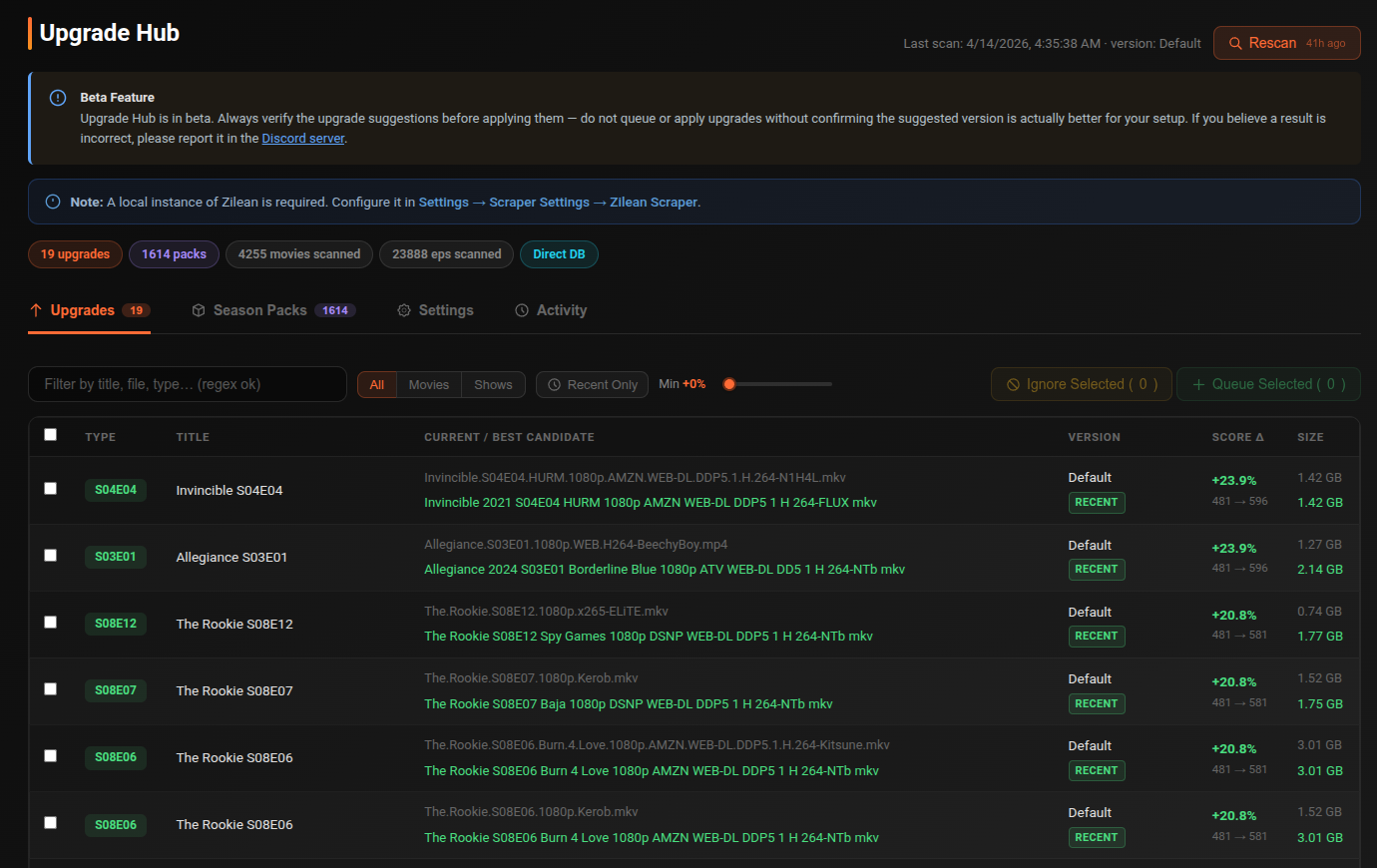
cli_debrid assigns a quality score to each collected item based on resolution, codec, HDR format, audio, and release type. When a torrent with a substantially higher score is found via Zilean, it appears in the Upgrade Hub.
The Score Δ column shows the improvement percentage and the before→after scores.
Scanning
Scheduled tasks
| Task | Default interval |
|---|---|
| Upgrade Hub Scan | Every 24 hours |
| Upgrade Hub Auto Queue | Every 24 hours |
Both require Automatic Scan and Auto Queue to be enabled in the Settings tab. Adjust intervals or trigger manually in the Task Manager under the Features tab.
Click Scan for Upgrades to start a scan. The button shows how long ago the last scan ran (e.g. 2h ago). During a scan a progress bar shows the current phase and ETA:
- Starting → Loading Zilean data → Scoring episodes & packs → Scanning movies → Done
After scanning, summary chips show: upgrades found, packs found, movies scanned, episodes scanned, and any errors.
Upgrades tab
Individual movie and episode upgrade candidates.
Filters:
| Filter | Description |
|---|---|
| Search | Text or regex on title, filename, type, version |
| Type | All, Movies, Shows |
| Recent Only | Toggle to show only candidates indexed ≤90 days ago (configurable) |
| Min Threshold slider | Filter out candidates below this improvement % (0–200% in 5% steps) |
Columns:
| Column | Description |
|---|---|
| Type | Movie or S##E## episode badge |
| Title | Movie/show name with year |
| Current / Best Candidate | Current filename (muted) and candidate filename (highlighted) |
| Version | Release info with cache badges (see below) |
| Score Δ | Improvement % and before→after scores |
| Size | Current and candidate sizes in GB |
Cache badges:
| Badge | Meaning |
|---|---|
| Recent | Candidate indexed ≤90 days ago |
| Older · Xd ago | Candidate age in days |
| ⚡ Cached Bypass | Not in recent Zilean but Phalanx confirms it is cached on RealDebrid |
| ⚡ RD Cached | Confirmed cached on RealDebrid |
| ✗ Not Cached | Not cached on RealDebrid |
Actions:
| Button | Description |
|---|---|
| Queue Selected | Add selected items to the upgrading queue |
| Ignore Selected | Dismiss — these candidates will be skipped in future scans |
Select all visible items with the Select All checkbox. Items are loaded in batches of 75 as you scroll.
Season Packs tab
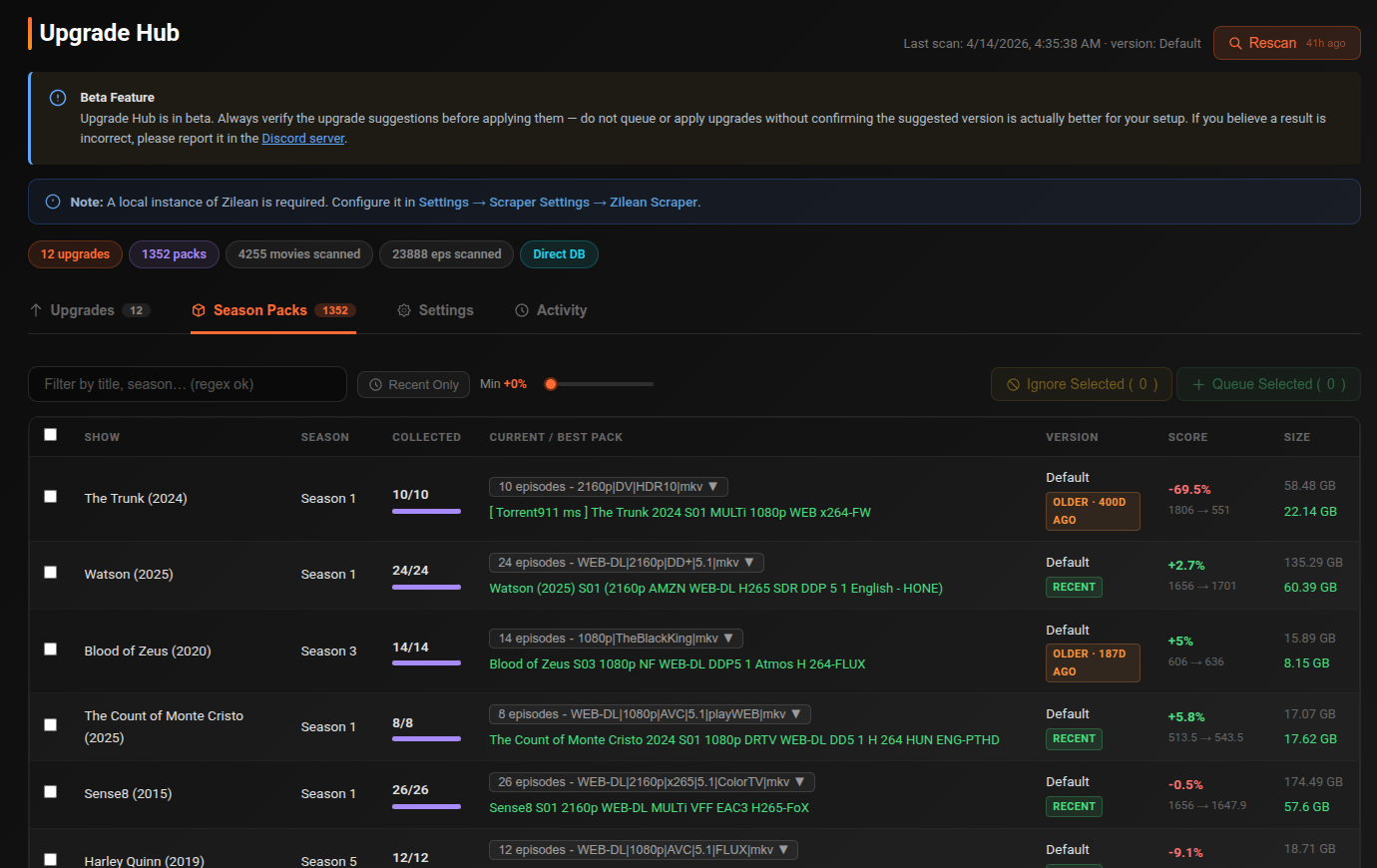
TV seasons where a complete season pack is available — often better than upgrading individual episodes.
Additional columns:
| Column | Description |
|---|---|
| Show | Show title and year |
| Season | Season number badge |
| Collected | Episodes collected / total with a progress bar |
| Current / Best Pack | Expandable list of current episode files, and the candidate pack filename |
Click the episode count button (e.g. 10 episodes) to expand and see individual episode filenames and quality tags.
Same filters, cache badges, and Queue/Ignore actions as the Upgrades tab.
Settings tab
| Setting | Default | Description |
|---|---|---|
| Automatic Scan | Off | Run a scan automatically every 24 hours. Requires enabling in the task scheduler. |
| Score Threshold | 0% |
Minimum improvement % to show a candidate. Applied to both Upgrades and Season Packs. |
| Only Show Recent Items | Off | Hide candidates older than the recent threshold from both tabs by default |
| Recent Threshold | 90 days |
How many days back defines "recent" |
| Scan Limit | All | Max collected items to scan per run — 100, 500, 1000, 2000, 5000, or All |
| Auto Queue | Off | Automatically queue candidates above the threshold after each scheduled scan. Respects Upgrades Per Run limit. |
| Hide Episodes Already in Season Packs | Off | Don't show individual episode upgrades in the Upgrades tab if they are already covered by a Season Pack candidate |
| Upgrades Per Run | 10 |
Max items queued per category (upgrades and packs independently) per auto-queue run |
| Excluded Genres | — | Skip items from these genres during scan. Applies to movies and shows. |
| Exclude NAS Items | Off | Skip items whose file path matches a configured NAS path prefix (set in Settings → Advanced Settings → Library Management → NAS / Network Drive). NAS items will not be scanned or listed. |
Settings actions:
| Button | Description |
|---|---|
| Save Settings | Persist all settings |
| Clear Hub Queue | Revert hub-queued items back to Collected state |
| Run Upgrade Cleanup | Remove old files and torrents for all completed upgrades in the background |
Activity tab
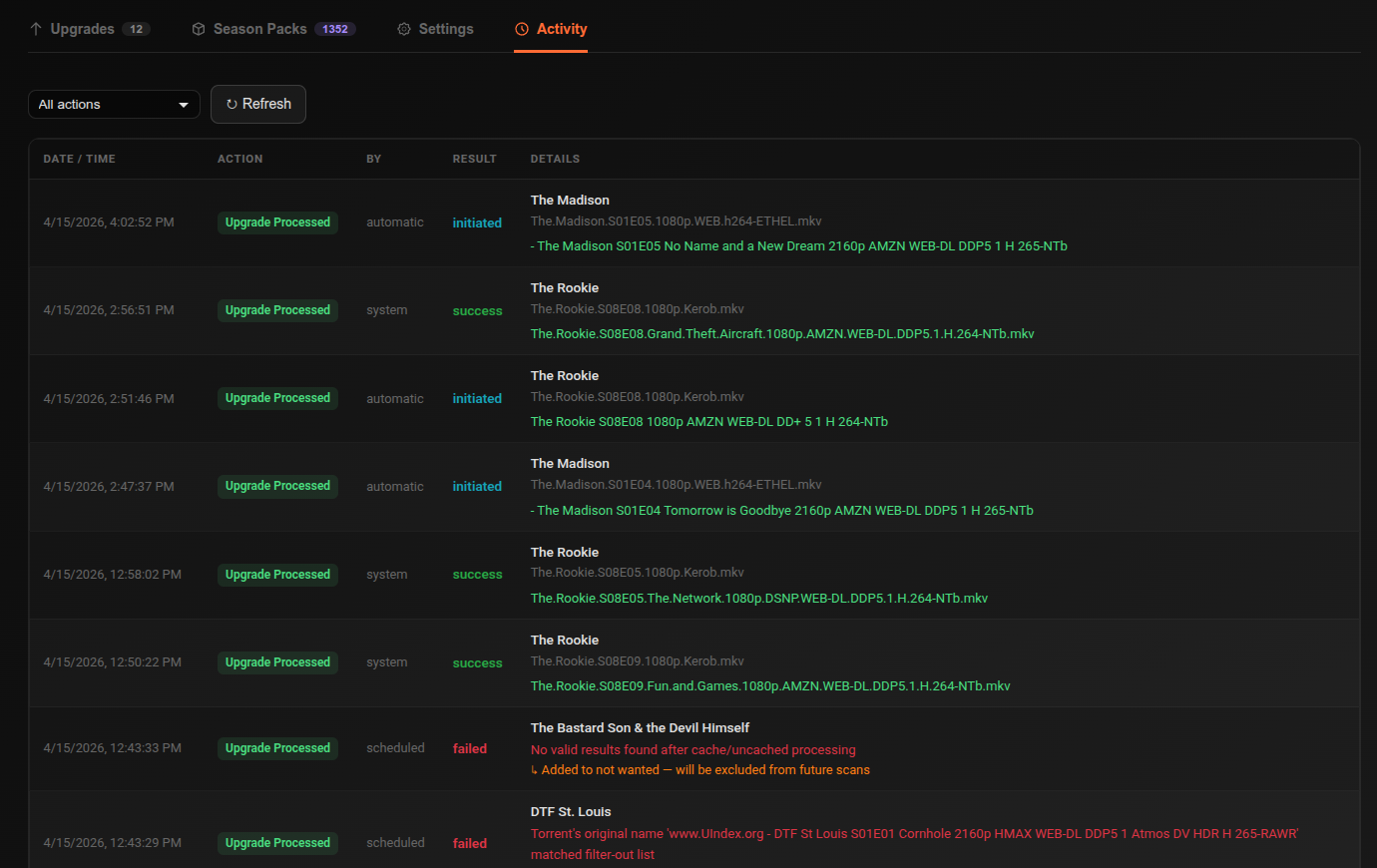
Log of all scan, queue, and upgrade processed events.
| Column | Description |
|---|---|
| Date / Time | Timestamp of the event |
| Action | Scan, Queue, or Upgrade Processed |
| By | System or username that triggered the action |
| Result | success, initiated, partial, or failed |
| Details | Summary stats for scans; title and from→to filenames for processed upgrades |
Filter by action type. Paginated at 50 entries per page. Auto-refreshes every 30 seconds on page 1.
Upgrade process
When an item is queued for upgrade:
- It enters the Upgrading queue state
- cli_debrid scrapes for the better torrent
- The new version is added to debrid and checked in
- Once confirmed, the old version is removed if Enable Upgrading Cleanup is enabled in Advanced Settings
The Upgrade Hub polls in the background and automatically removes rows for items that have been successfully upgraded.