Jellyfin
Jellyfin is a free, open-source alternative to Plex. CLI_Debrid supports Jellyfin for library management.
Jellyfin is recommended on Windows
If you're running CLI_Debrid on Windows with Symlinked/Local mode, use Jellyfin — Plex does not support symlinks on Windows.
Prerequisites
- Jellyfin installed and running
- A working debrid mount (Zurg + rclone or Decypharr)
- The mount path accessible inside the Jellyfin container
Step 1 — Expose the debrid mount to Jellyfin
Jellyfin requires symlink mode. You need to mount both the debrid storage and the symlink folder, and the container paths must match cli_debrid exactly.
| Host Path | Container Path |
|---|---|
Your debrid mount (e.g. /mnt/remotes/zurg) |
Must match cli_debrid exactly (e.g. /media/mount) |
Your symlink folder (e.g. /mnt/symlinks) |
Must match cli_debrid exactly (e.g. /mnt/symlinked) |
Paths must match cli_debrid exactly
Symlinks created by cli_debrid point to files inside the debrid mount using the container path. Jellyfin must mount both volumes at identical container paths to cli_debrid — otherwise symlinks will appear broken.
services:
  jellyfin:
    image: lscr.io/linuxserver/jellyfin:latest
    container_name: jellyfin
    network_mode: bridge
    ports:
      - "8096:8096/tcp"
      - "7359:7359/udp"
    volumes:
      - /path/to/your/debrid/mount:/media/mount:ro    # e.g. /mnt/cache/zurg, /mnt/data/debrid — must match cli_debrid
      - /path/to/your/symlinks:/mnt/symlinked:ro       # e.g. /mnt/disk1/TVShows — must match cli_debrid
      - /path/to/jellyfin/appdata:/config:rw           # e.g. /mnt/cache/appdata/jellyfin
    environment:
      - TZ=America/New_York
      - PUID=0
      - PGID=0
      - UMASK=022
    restart: unless-stopped
Unraid users
Use the actual pool path for the mount (e.g. /mnt/cache/zurg or /mnt/downloadcache/zurg), not /mnt/user/zurg. This avoids array startup issues.
Edit your Jellyfin docker template and add the path mapping above.
Paste the same compose file from the Docker Compose tab into your stack editor and deploy.
- Portainer: Stacks → Add Stack → paste → Deploy
- Dockge: + Compose → paste → Deploy
- Dockhand: Stacks → + Create → paste → Create & Start
Jellyfin has a native Windows installer.
- Download from jellyfin.org/downloads
- Run the installer
- Jellyfin will be available at
http://localhost:8096
Restart Jellyfin after making this change.
Step 2 — Add Debrid libraries in Jellyfin
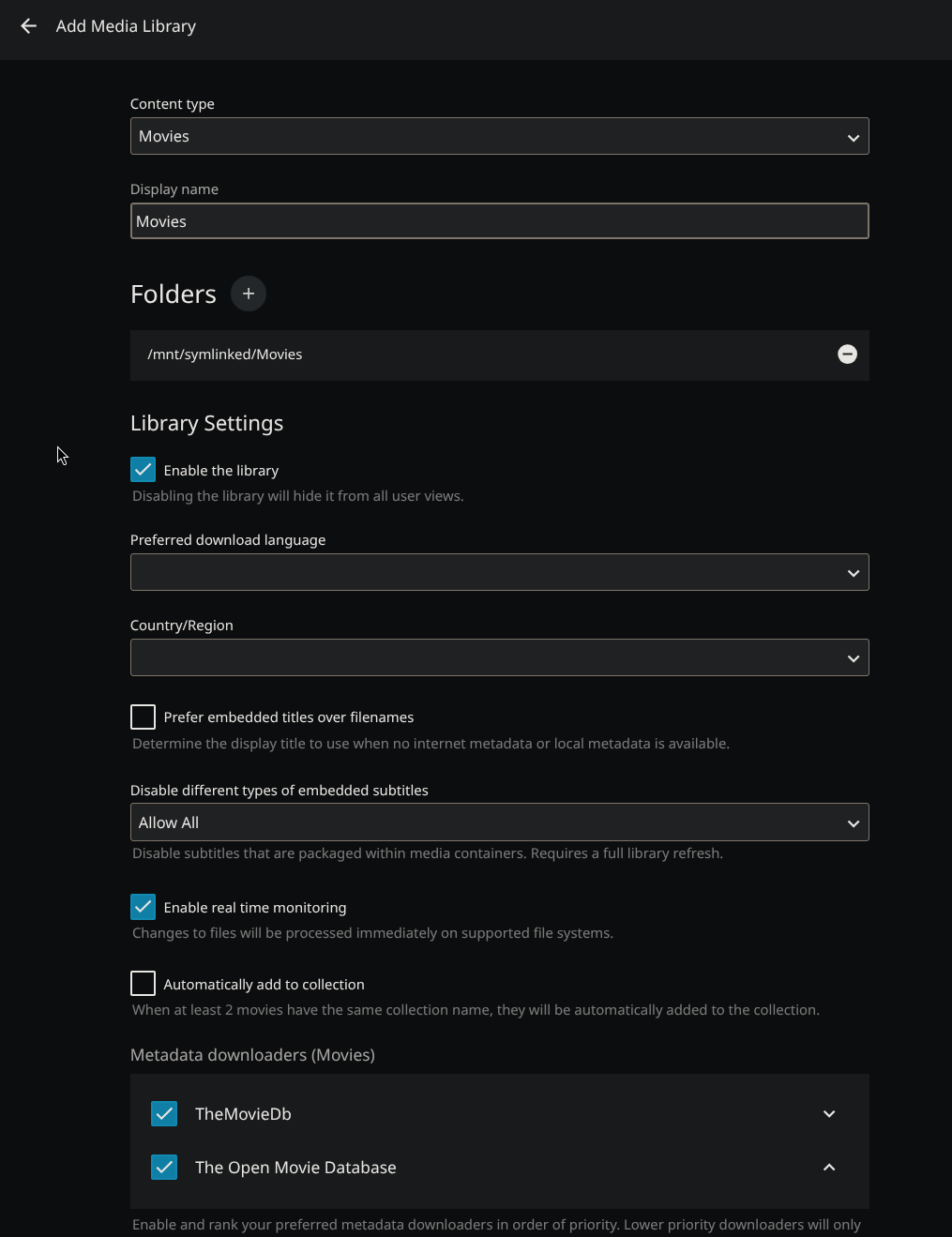
- In Jellyfin, go to Dashboard → Libraries
- Click Add Media Library
- For Content Type, select Movies
- Name it
Movies-DB - Add folder:
/data/movies - Click OK
Repeat for TV Shows:
- Add another library
- Content Type: Shows
- Name:
TV Shows-DB - Folder:
/data/shows
Step 3 — Configure CLI_Debrid for Jellyfin
In CLI_Debrid, go to Settings → Required Settings:
| Setting | Value |
|---|---|
| File Management | Plex (Jellyfin uses the same setting) |
| Media Server Type | Jellyfin |
| Jellyfin URL | http://YOUR_JELLYFIN_IP:8096 |
| Jellyfin API Key | See below |
| Shows Libraries | TV Shows-DB |
| Movie Libraries | Movies-DB |
Getting your Jellyfin API key
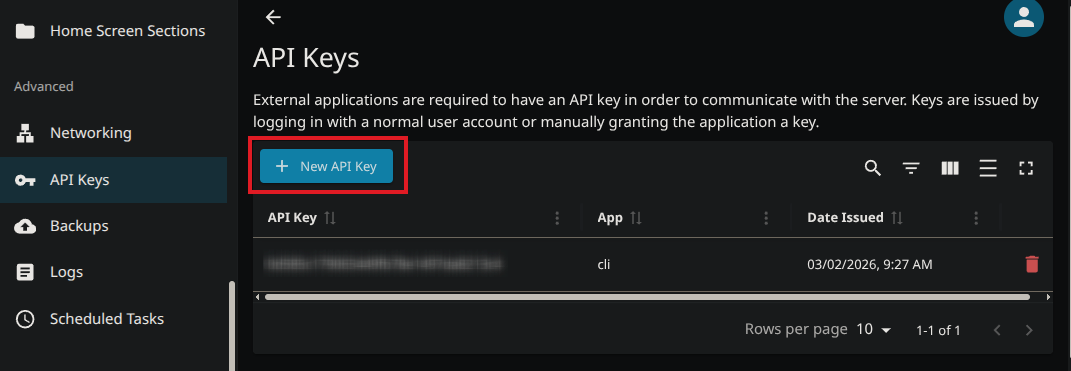
- In Jellyfin, go to Dashboard → API Keys
- Click + to create a new key
- Name it
cli_debrid - Copy the generated key
Troubleshooting
New content not appearing in Jellyfin
- Go to Dashboard → Libraries → click Scan All Libraries
- Or trigger a scan on just the Movies-DB or TV Shows-DB library
Items showing with wrong metadata
- In Jellyfin, right-click the item → Identify and search manually