Install with Docker
This guide covers installing cli_debrid using Docker and Docker Compose on Linux, macOS, or Windows. This is the recommended installation method.
Prefer a GUI?
If you use Portainer, Dockge, or Dockhand, the same Docker Compose file works — just paste it into your stack editor.
Prerequisites
Before you begin, confirm you have:
- Docker installed and running
- Docker Compose v2 or later (
docker composecommand) - A debrid account (Real-Debrid, AllDebrid, Premiumize, Torbox, or Debrid-Link)
- Plex, Jellyfin, or Emby with your debrid library mounted (via Zurg + rclone or Decypharr)
Avoid Docker Desktop on Linux
On Linux servers, install Docker Engine directly — not Docker Desktop. Docker Desktop on Linux runs in a VM which can cause permission and mount issues with cli_debrid.
Image tags
| Tag | Architecture | Branch | Notes |
|---|---|---|---|
godver3/cli_debrid:dev |
amd64 | dev | Latest features — recommended |
godver3/cli_debrid:dev-arm64 |
arm64 | dev | For ARM devices (Raspberry Pi, Apple Silicon) |
godver3/cli_debrid:main |
amd64 | main | Stable, updated every 6–8 weeks |
godver3/cli_debrid:main-arm64 |
arm64 | main | Stable ARM build |
godver3/cli_debrid:latest |
amd64 | dev | Pinned to newest dev build |
Which tag should I use?
Use :dev for day-to-day use. Bugs are caught and fixed fastest on the dev branch. Use :main if you prefer less frequent updates.
Step 1 — Create the directory
Create a directory to store cli_debrid's data:
Step 2 — Create the Docker Compose file
Download the default compose file:
Or create it manually:
Stack all services in one compose file
You can combine cli_debrid, Zurg/Decypharr, Plex, and Jellyfin into a single docker-compose.yml by adding each as a separate service under the same services: block. This makes it easier to start, stop, and update everything together with one docker compose up -d command. The same applies in Portainer, Dockge, and Dockhand — just paste the merged file into your stack editor.
Choose the compose file that matches your file management mode:
Use this when running Jellyfin, Emby, or Plex with symlinks.
services:
  cli_debrid:
    image: godver3/cli_debrid:dev
    pull_policy: always
    container_name: cli_debrid
    ports:
      - "5000:5000"
      - "5001:5001"
    volumes:
      - /path/to/appdata/db_content:/user/db_content    # (1) e.g. /mnt/cache/appdata/cli_debrid/db_content
      - /path/to/appdata/config:/user/config             # (2) e.g. /mnt/cache/appdata/cli_debrid/config
      - /path/to/appdata/logs:/user/logs                 # (3) e.g. /mnt/cache/appdata/cli_debrid/logs
      - /path/to/your/debrid/mount:/media/mount          # (4) e.g. /mnt/cache/zurg, /mnt/data/debrid — must match media server
      - /path/to/your/symlinks:/mnt/symlinked            # (5) e.g. /mnt/disk1/TVShows — must match media server
      - /path/to/plex/Library/Application Support/Plex Media Server:/plex_data  # (6) optional — overlay feature, Plex only
    environment:
      - TZ=America/New_York                              # (7) your timezone
      - MALLOC_ARENA_MAX=2                               # (8) optional — limits glibc memory arenas, reduces memory fragmentation in Python apps
    restart: unless-stopped
    tty: true
    stdin_open: true
- SQLite databases — back this up regularly
- Settings and configuration files
- Application log files
- Your debrid mount (Zurg or Decypharr) — container path must match your media server exactly
- Where cli_debrid writes symlinks — container path must match your media server exactly
- Optional — only needed for the Overlay feature. Path to your Plex Media Server data folder
- Set to your local timezone — see full list
- Optional — limits memory arena allocation, reduces memory usage. Recommended for all installs
Container paths must match your media server
The debrid mount and symlink folder must use identical container paths in both cli_debrid and your media server (Plex/Jellyfin/Emby). If they differ, symlinks will appear broken. See Plex and Jellyfin guides for matching examples.
Unraid users
Use the actual pool path for your volumes (e.g. /mnt/cache/appdata/cli_debrid), not the user share path (/mnt/user/...). This avoids array startup issues.
Use this when running Plex with Plex mode (no symlinks). Plex reads directly from the debrid mount.
cli_debrid
services:
  cli_debrid:
    image: godver3/cli_debrid:dev
    pull_policy: always
    container_name: cli_debrid
    ports:
      - "5000:5000"
      - "5001:5001"
    volumes:
      - /path/to/appdata/db_content:/user/db_content    # (1) e.g. /mnt/cache/appdata/cli_debrid/db_content
      - /path/to/appdata/config:/user/config             # (2) e.g. /mnt/cache/appdata/cli_debrid/config
      - /path/to/appdata/logs:/user/logs                 # (3) e.g. /mnt/cache/appdata/cli_debrid/logs
      - /path/to/your/debrid/mount:/media/mount          # (4) e.g. /mnt/cache/zurg, /mnt/data/debrid
      - /path/to/plex/Library/Application Support/Plex Media Server:/plex_data  # (5) optional — overlay feature
    environment:
      - TZ=America/New_York                              # (6) your timezone
      - MALLOC_ARENA_MAX=2                               # (7) optional — limits glibc memory arenas, reduces memory fragmentation in Python apps
    restart: unless-stopped
    tty: true
    stdin_open: true
- SQLite databases — back this up regularly
- Settings and configuration files
- Application log files
- Your debrid mount (Zurg or Decypharr)
- Optional — only needed for the Overlay feature. Path to your Plex Media Server data folder
- Set to your local timezone — see full list
- Optional — limits memory arena allocation, reduces memory usage. Recommended for all installs
services:
  plex:
    image: lscr.io/linuxserver/plex:latest
    container_name: plex
    network_mode: host
    volumes:
      - /path/to/your/debrid/mount:/debrid:ro            # (1) e.g. /mnt/cache/zurg, /mnt/data/debrid
      - /path/to/plex/appdata:/config:rw                 # e.g. /mnt/cache/appdata/plex
      - /path/to/plex/transcode:/transcode:rw            # e.g. /mnt/cache/appdata/plex/transcode
      - /path/to/plex/data:/data:rw                      # e.g. /mnt/cache/appdata/plex/data
    environment:
      - TZ=America/New_York
      - VERSION=latest
      - PUID=0
      - PGID=0
      - UMASK=022
    restart: unless-stopped
    devices:
      - /dev/dri:/dev/dri                                # (2) optional — hardware transcoding
- Your debrid mount — in Plex mode the container path does not need to match cli_debrid
- Optional — only needed for hardware transcoding
Unraid users
Use the actual pool path for your volumes (e.g. /mnt/cache/appdata/cli_debrid), not the user share path (/mnt/user/...). This avoids array startup issues.
Step 3 — Start the container
Check that the container started successfully:
You should see output like:
Press Ctrl+C to stop following the logs.
Step 4 — Access the web interface
Open your browser and navigate to:
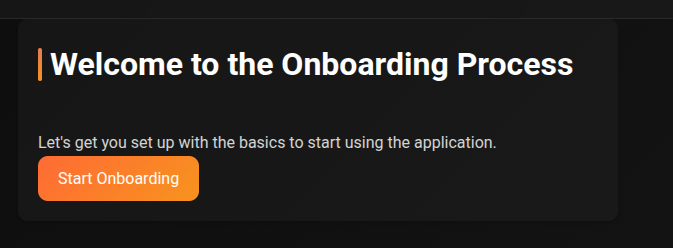
The first time you visit, the onboarding wizard will launch automatically.
Step 5 — Complete onboarding
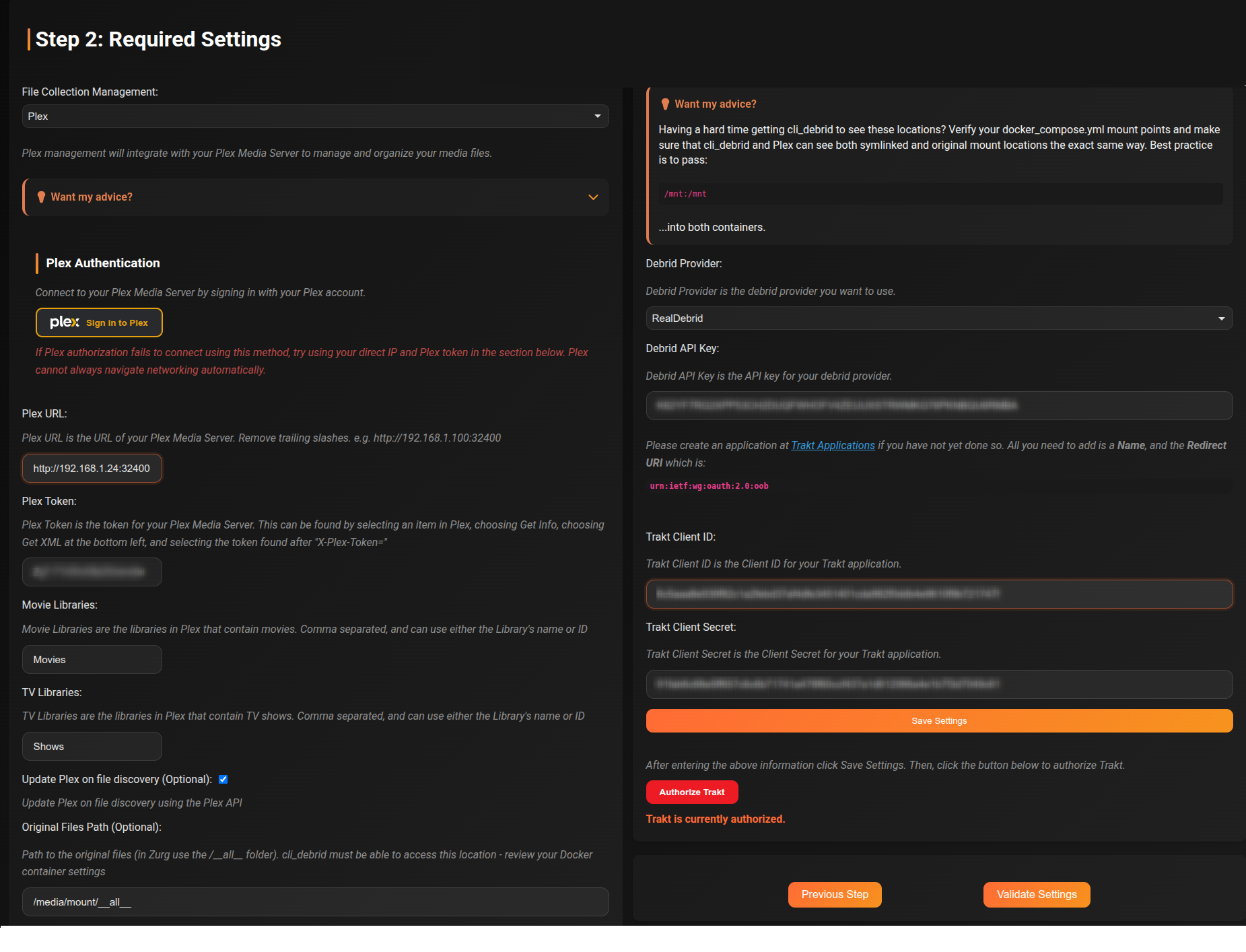
The onboarding wizard will guide you through:
- Account setup — create your admin account
- Required settings — connect your debrid provider and Plex/Jellyfin
- Scrapers — configure at least one scraper (Zilean recommended to start)
- Content sources — add your Trakt watchlists or other sources
- Library management — choose Plex or Symlinked mode
Take your time with onboarding
You can always change settings later via the Settings page. The onboarding just gets you to a working state quickly.
Ports
| Port | Purpose |
|---|---|
5000 |
Main web UI and API |
5001 |
HTTPS / alternate access |
Common commands
View logs
Restart the container
Stop cli_debrid
Update to the latest image
See the full Updating guide for more detail.