Maintenance
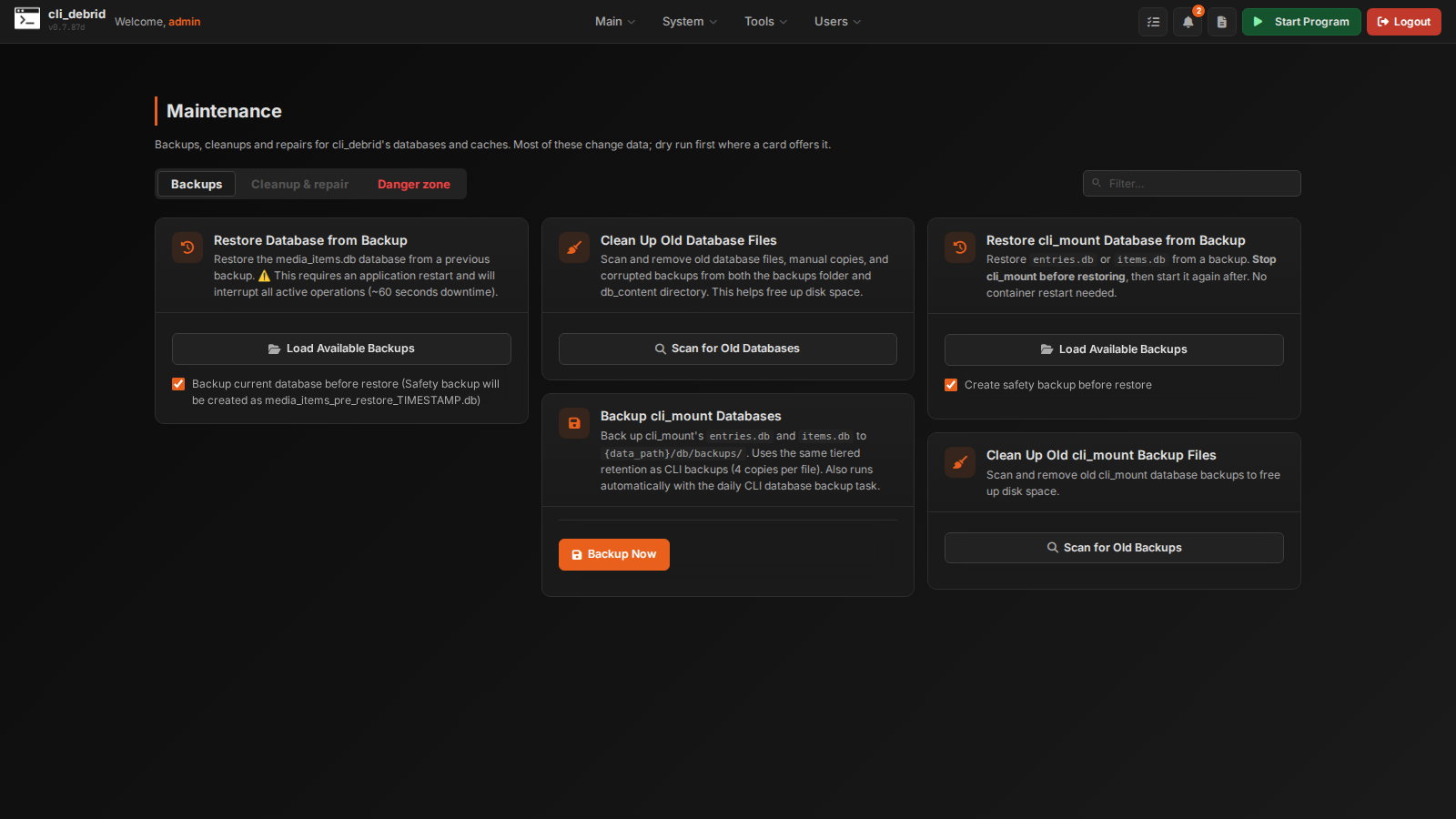
The Maintenance page holds backups, cleanups and repairs for cli_debrid's database and cli_mount's, plus a separate danger zone for deleting data. Open it from System → Maintenance.
It has three tabs: Backups, Cleanup & repair and Danger zone.
Back up first
Most of these change data permanently. Take a backup before using the cleanup and danger-zone cards, and use Dry Run where a card offers it.
Backups
Restore Database from Backup
What it does: Restores media_items.db from a previous automatic backup.
When to use: The database was accidentally corrupted or deleted and you need to roll back.
How to use: 1. Select a backup from the list (shows date and size) 2. Optionally enable Create Safety Backup to save the current database before overwriting 3. Click Restore — the app will restart (~60 seconds)
Clean Up Old Database Files
What it does: Scans and removes old database backup files, manual copies, and corrupted files from the backups folder and db_content directory.
How to use: 1. Click Scan to see what would be removed 2. Review the list 3. Click Delete Selected to free up disk space
Backup cli_mount Databases
What it does: Backs up cli_mount's entries.db and items.db to <cli_mount data path>/db/backups/, keeping four copies of each file. It also runs every day with cli_debrid's own database backup.
Needs: cli_mount's data folder mounted into cli_debrid and cli_mount Data Path set under Settings → Required → Usenet Mount. The one-stack compose file sets this up.
Restore cli_mount Database from Backup
What it does: Restores entries.db or items.db from one of those backups.
How to use: Stop cli_mount first, restore, then start cli_mount again. cli_debrid doesn't need a restart.
Clean Up Old cli_mount Backup Files
What it does: Finds old cli_mount database backups and removes the ones you select, to free disk space.
Cleanup & repair
Remove Duplicate Database Items
What it does: Finds and removes duplicate entries based on the filled_by_file field — keeping one entry per unique file.
When to use: You see duplicate items in your library that point to the same file.
How to use: 1. Click Dry Run first to preview what would be removed 2. Review the list 3. Click Remove to execute
NAS / Network Filter (only shown when NAS paths are configured)
| Option | Description |
|---|---|
| All items | No filtering — process all duplicates |
| Exclude NAS items | Skip duplicate groups stored on NAS/network drives |
| Only NAS items | Only process duplicate groups stored on NAS/network drives |
Configure NAS paths in Settings → Library & Files → Library → NAS / Network Drive Paths.
Manage Duplicate Versions
What it does: Cleans up situations where the same item exists multiple times in different states (e.g. one Collected and one Blacklisted copy of the same file).
When to use: - After failed upgrades that left both old and new versions - After blacklist bugs that created duplicate entries - When you see multiple copies of the same episode in different states
Options:
| Option | Description |
|---|---|
| Keep Collected, delete Blacklisted | Clean up failed upgrade leftovers |
| Keep Blacklisted, delete Collected | Fix blacklist bug duplicates |
| Keep Collected, delete Ghostlisted | Clean soft-deleted duplicates |
| Keep Ghostlisted, delete Collected | Keep ghostlisted versions |
| Keep best quality, delete rest | When multiple Collected copies exist |
Exclude patterns: Enter terms (e.g. REMUX, IMAX) to protect specific versions from being deleted regardless of the rule.
NAS / Network Filter (only shown when NAS paths are configured)
| Option | Description |
|---|---|
| All items | No filtering — process all duplicate groups |
| Exclude NAS items | Skip groups where items are stored on NAS/network drives |
| Only NAS items | Only process groups where items are stored on NAS/network drives |
Configure NAS paths in Settings → Library & Files → Library → NAS / Network Drive Paths.
Always use Dry Run first.
Fix Episode Numbers
What it does: Fixes incorrect episode numbers by parsing them from the actual filename.
When to use: Episodes have wrong numbers in the database — e.g. the file is S02E05 but the database says S02E01.
How to use: 1. Optionally enable Dry Run to preview 2. Enable Find and Remove Duplicates to clean up any duplicates created by the bug 3. Click Fix
Manage Cache Files
What it does: Lists and lets you delete content source cache files (.pkl files). These caches speed up source checks but can become stale.
When to use: A content source isn't picking up new items or is returning old/stale data.
How to use: 1. View the list of cache files with their labels 2. Select the ones you want to clear 3. Click Delete Selected
cli_mount DB Cleanup
What it does: Removes every entry for one debrid provider from cli_mount's databases, matched by infohash. Folders that mix files from several providers are rebuilt with only the other providers' files.
When to use: You stopped using a debrid provider and want its entries gone from cli_mount.
Backfill NZB File Names
What it does: Renames collected NZB items, in cli_debrid's database and in cli_mount, to the structured NZB naming format: Title (Year) - {{imdb-…}} - Version - (Original.Release.Name).
Needs: Enable NZB File Naming turned on under Settings → Required → Usenet Mount.
Cleanup My Plex Watchlist and Other Plex Watchlists
What it does: Removes all Collected items from My Plex Watchlist and every configured Other Plex Watchlist. Plex automatically adds items to your watchlist when they're not in your library — this cleans them up after collection.
When to use: Your Plex watchlist is cluttered with items you've already collected.
Reset Battery Show Status Cache
What it does: Forces all shows in the battery to re-fetch their status (Ended, Continuing, Cancelled) from TVDB/Trakt on the next run.
When to use: Shows are showing incorrect statuses — e.g. a show is marked "Ended" when it was actually just "Cancelled", or a returning show is still marked "Ended".
After running: run Update show status (ended/airing) on the Automation page to apply the refresh right away.
Not Wanted list
What it does: Opens the list of releases cli_debrid skips because they failed before (magnets and URLs). Remove single entries, or purge the list. The Automation page's one-time tasks can also purge the not-wanted magnets, URLs and NZBs.
Full cli_mount sync
What it does: Re-reads every entry from cli_mount, not just recent changes, and updates cli_debrid's database to match. The queue pauses while it runs and resumes on its own.
When to use: cli_debrid and cli_mount disagree about what's in the library, for example after restoring one of them from a backup.
Danger zone
These delete data and can't be undone.
Bulk Delete from Database
What it does: Deletes all database entries matching an IMDb or TMDB ID.
When to use: You want to completely remove a title (all seasons, all episodes) from the database at once.
How to use:
1. Find the IMDb ID (format: tt1234567) or TMDB ID (numeric)
2. Paste it into the field
3. Click Delete
4. Confirm the count of items deleted
Delete Battery Database Files
What it does: Deletes cli_battery.db and its associated files from the db_content directory.
When to use: The metadata battery is corrupted or returning incorrect data. This resets it completely — cli_battery will rebuild from scratch.
Warning
After deleting, metadata will need to be re-fetched for all items. This may take time and cause temporary issues with overlay generation and upgrade scoring.
Delete Database
What it does: Completely deletes media_items.db and all cache files. cli_debrid starts fresh with an empty database.
When to use: Only as a last resort — database is severely corrupted and cannot be repaired.
How to use:
1. Type DELETE in the confirmation box
2. Optionally check Retain Blacklisted Items to preserve your blacklist
3. Click Delete — the app will reload automatically
Back up first
Use Restore Database from Backup (Backups tab) after deleting if you have a backup available.