Content Sources
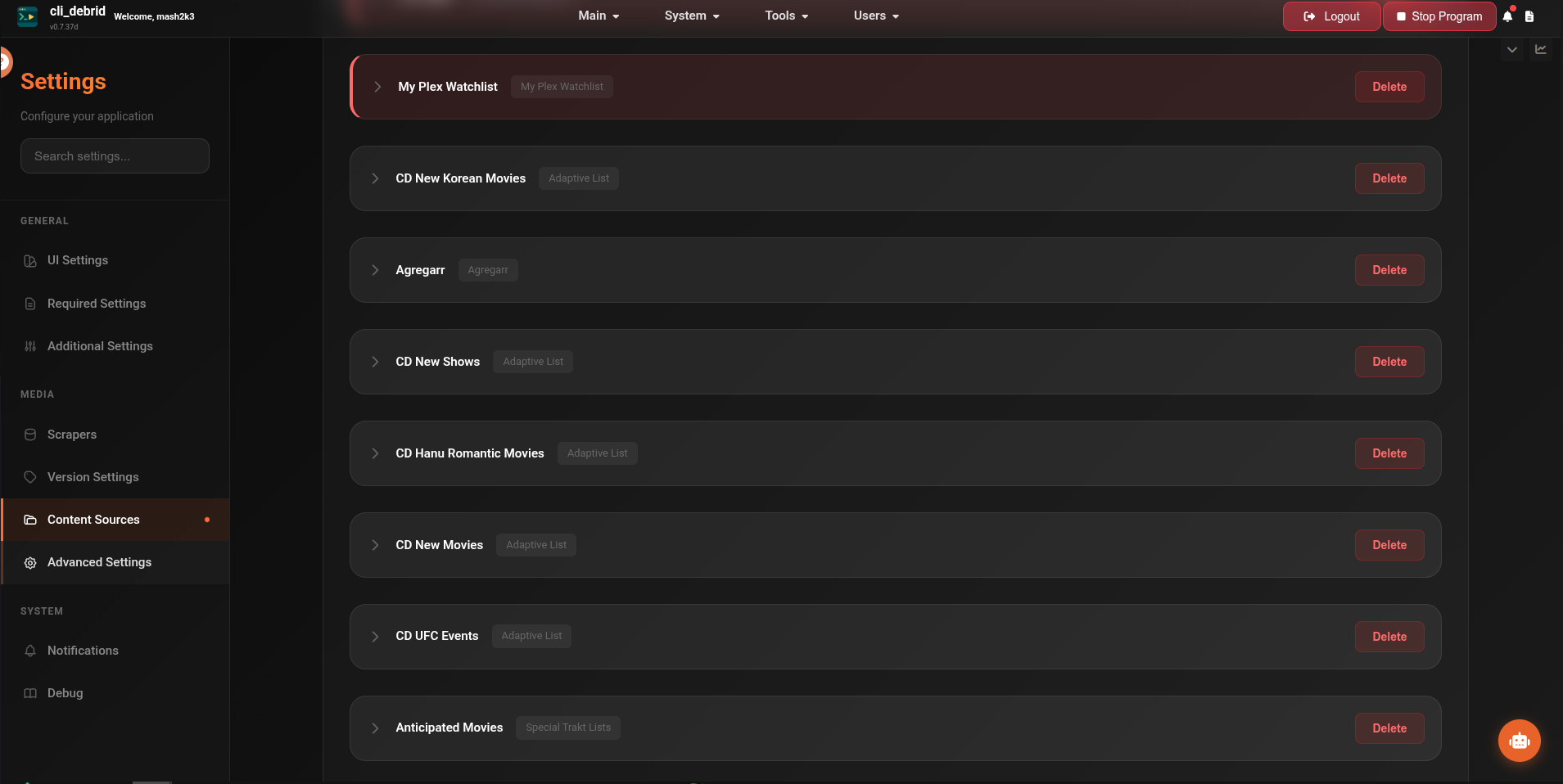
Content sources tell cli_debrid what to download. Each source you enable is checked automatically on every processing cycle — any new items are added to the Wanted queue.
You can have multiple sources active at the same time.
Common settings (all sources)
Every content source shares these settings regardless of type:
| Setting | Description |
|---|---|
| Enabled | Toggle the source on or off. Disabled sources are not deleted — they just stop being checked. |
| Display Name | The label used in the UI, logs, and Plex labels. |
| Media Type | Filter to Movies only, Shows only, or All. |
| Versions | Which quality profiles to use. Check all versions that should apply to this source. |
| Allow Specials | If enabled, Season 0 (Specials) episodes are also downloaded for TV shows. Default: off. |
| Unblacklist on Source Run | Re-queue items that were previously blacklisted every time this source runs. Default: off. |
| Custom Symlink Subfolder | (Symlinked mode only) Put downloads from this source in a specific subfolder. Leave blank to use the default. |
| Cutoff Date | Only download content released after this date. Accepts either a date (2023-01-01) or a number of days (30 = only content from the last 30 days). Leave blank for no cutoff. |
| Exclude Genres | Skip items belonging to these genres. Useful to exclude e.g. Documentary or Animation from a broad source. |
| List Length Limit | Maximum number of items to process per run. 0 = no limit. |
Plex Labels
Every source has an optional Plex Label setting. When enabled, items downloaded from this source are automatically labelled in Plex.
Plex Collections
Trakt Lists, MDBList, and Adaptive List sources support an additional Plex Collection section that automatically creates and maintains a Plex collection mirroring the source list — with custom sort order and a designed poster.
See Plex Collections for full setup and configuration details.
| Setting | Description |
|---|---|
| Enabled | Toggle Plex labelling for this source. |
| Label Mode | How the label is determined — see table below. |
| Fixed Label | The custom label text if Label Mode is set to Fixed. |
Label Mode options:
| Mode | What gets applied | Available on |
|---|---|---|
list_name |
The source's Display Name | All sources |
fixed |
The text you type in Fixed Label | All sources |
requester |
The Seerr requester's username | Seerr only |
Available sources
| Source | What it does |
|---|---|
| Trakt Watchlist | Your personal Trakt watchlist |
| Trakt Lists | Any public or private Trakt list by URL |
| Trakt Collection | Items marked as collected in Trakt |
| Special Trakt Lists | Built-in Trakt charts — trending, popular, anticipated, etc. |
| Friends Trakt Watchlist | A friend's Trakt watchlist |
| Seerr | Approved requests from Seerr |
| MDBList | Curated lists from mdblist.com |
| My Plex Watchlist | Your personal Plex watchlist |
| Other Plex Watchlist | Another Plex user's watchlist |
| Plex RSS Watchlists | Plex watchlist via RSS feed URL |
| Plex Watch History | Items from your Plex watch history |
| Agregarr | Content from an Agregarr instance |
| Collected | Items already marked as collected in cli_debrid |
| Adaptive List | Dynamic TMDB Discover-based list with custom filters |
Trakt Watchlist
Your personal Trakt watchlist. Any item you add to your watchlist on Trakt will be downloaded automatically.
Setup:
- Go to Settings → Content Sources
- Find Trakt Watchlist and click to expand it
- Toggle Enabled on
- Set your preferred Media Type and Versions
- Click Save
That's it — no URLs or API keys needed. cli_debrid uses the Trakt account you already authenticated in Additional Settings.
Trakt Collection
Items you have marked as "Collected" in your Trakt account. Useful if you want cli_debrid to ensure everything in your Trakt collection is actually downloaded.
Setup: Same as Trakt Watchlist — just enable and configure. No extra fields required.
Trakt Lists
Monitors one or more Trakt lists by URL. Works with your own lists and any public list from any Trakt user.
Additional field:
| Field | Description |
|---|---|
| Trakt List URLs | One or more Trakt list URLs, separated by commas. |
How to get a Trakt list URL:
- Go to trakt.tv and log in
- Navigate to any list — your own (under Lists) or someone else's public list
- Copy the URL from your browser's address bar
URL formats you can use:
https://trakt.tv/users/yourusername/lists/my-list-name
https://trakt.tv/users/someotheruserr/lists/their-public-list
To add multiple lists, separate with commas:
Special Trakt Lists
Built-in Trakt charts — no URL needed. Choose from trending, popular, anticipated, and more.
Additional field:
| Field | Options |
|---|---|
| List Types | Multi-select — pick one or more from the list below |
Available list types:
| Type | Description |
|---|---|
| Trending | Most popular right now based on active watches |
| Popular | All-time most popular |
| Favorited | Most added to Trakt favourites |
| Played | Most watched overall |
| Watched | Most recently watched across all users |
| Collected | Most collected by Trakt users |
| Anticipated | Highest anticipated upcoming releases |
| Box Office | Current top 10 box office (Movies only) |
Box Office is movies only
If you select Box Office, set Media Type to Movies. It won't return results for TV shows.
Setup:
- Enable Special Trakt Lists
- Select which list types you want (hold Ctrl/Cmd to select multiple)
- Set Media Type (especially important for Box Office)
- Set Versions and save
Friends Trakt Watchlist
Download items from a friend's Trakt watchlist. The friend needs to authorise their Trakt account via cli_debrid's built-in friend management page.
Setting up a friend's Trakt account:
- Go to
http://YOUR_SERVER_IP:5000/trakt_friends/manage - Your friend needs to create a Trakt API application at trakt.tv/oauth/applications and provide their Trakt Client ID and Trakt Client Secret
- Enter their Client ID and Client Secret and click Start Authorization
- Your friend completes the OAuth flow to grant access
- Once authorised, their account appears in the Authorized Friends list
- Their username can then be used in the Friends Trakt Watchlist content source
Seerr
Automatically downloads approved requests from your Seerr instance.
Additional fields:
| Field | Description |
|---|---|
| URL | Full URL to your Seerr instance, e.g. http://192.168.1.10:5055 |
| API Key | Your Seerr API key |
| Ignore Tags | Comma-separated Seerr tags to skip. Items with any of these tags won't be downloaded. |
| Allow Partial Requests | Allow partial show requests from Seerr (e.g. individual seasons rather than the full series). Default: off. |
How to find your Seerr API key:
- Log in to Seerr
- Go to Settings → General
- Copy the API Key from the top of the page
Setup:
- Enable Seerr
- Enter your URL (include
http://orhttps://and the port number) - Paste your API Key
- Optionally set Ignore Tags if you use Seerr tags to exclude certain requests
- Set Versions and Media Type
- Save
Plex Label Mode for Seerr:
The Seerr source supports requester as a Label Mode — this automatically labels items in Plex with the name of the person who requested them in Seerr. Great for multi-user setups.
Faster request pickup with webhooks
By default, cli_debrid checks Seerr on its normal processing cycle. For faster pickup (within seconds of approval), configure the Seerr webhook to notify cli_debrid immediately. See the Integrations guide.
MDBList
Monitors curated lists from mdblist.com. MDBList aggregates and maintains hundreds of themed lists — by genre, franchise, director, streaming platform, and more.
Additional fields:
| Field | Description |
|---|---|
| API Key | Your MDBList API key |
| List URLs | One or more MDBList list URLs, separated by commas |
How to get your MDBList API key:
- Go to mdblist.com and create a free account
- Go to mdblist.com/api while logged in
- Copy your API key
How to find a list URL:
- Browse to mdblist.com/lists
- Find a list you want to use
- Copy the URL from your browser address bar, e.g.
https://mdblist.com/lists/garycrawfordgc/top-rated-movies
My Plex Watchlist
Your personal Plex watchlist — anything you add to your Plex watchlist will be downloaded automatically.
Setup:
- Enable My Plex Watchlist
- Set Media Type and Versions
- Save
No extra credentials needed — uses your Plex account from Required Settings.
Other Plex Watchlist
Downloads items from another Plex user's watchlist (e.g. a family member or housemate).
Additional fields:
| Field | Description |
|---|---|
| Username | The other user's Plex username |
| Token | The other user's Plex authentication token |
How to get a Plex token for another user:
cli_debrid has a built-in tool to collect Plex tokens from other users without needing them to dig through XML or share credentials.
- Go to
http://YOUR_SERVER_IP:5000/user_token/collect_tokens - Click Generate User Login Link
- Copy the generated Code or full Link
- Send it to the other user (via Discord, email, etc.)
- They visit the link (or go to
plex.tv/linkand enter the code) and sign in to their Plex account - Once authorised, their Plex username and token will appear in the Stored Tokens list
Security note
User tokens are stored in a local JSON file. Ensure your server's file system is properly secured.
The other user can find their token by:
- Logging in to Plex Web
- Going to any media item → Get Info → View XML
- Copying the
X-Plex-Token=value from the URL bar
Plex RSS Watchlists
Monitors a Plex watchlist via its RSS feed URL. Works for your own watchlist or a friend's.
Additional field:
| Field | Description |
|---|---|
| RSS URL | The full RSS feed URL from Plex |
How to get the Plex RSS feed URL:
- Log in to app.plex.tv
- Click your profile picture → Watchlist
- Look for the RSS feed icon or a Share/Export option
- Copy the RSS URL
Plex Watch History
Monitors your Plex watch history and adds watched items to cli_debrid's wanted queue — useful for automatically tracking content you've already watched so it can be collected or upgraded.
Sync pulls from both your Plex account history and your server libraries using batch processing. IMDb IDs are resolved via Trakt as a fallback when Plex metadata doesn't provide them directly.
Setup: Enable and configure Media Type and Versions. A Plex connection must be configured in Settings → Integrations → Plex.
Note
To prevent watch history items from being re-added to the queue (e.g. if you want to watch without collecting), enable Do Not Add Plex Watch History Items To Queue in Settings → Advanced Settings.
Agregarr
Agregarr is a self-hosted content aggregation service. Rather than cli_debrid polling Agregarr, Agregarr pushes content to cli_debrid via webhook. When Agregarr has new content, it sends a POST request directly to cli_debrid.
Connecting cli_debrid to Agregarr:
In Agregarr, go to Settings → Downloads → Seerr Settings and add a new Seerr connection:
| Field | Value |
|---|---|
| Hostname or IP Address | Your cli_debrid server IP |
| Port | 5000 |
| Use SSL | Off (unless you have SSL configured) |
| API Key | Your cli_debrid API key if user management is enabled — otherwise any non-empty string will work (field cannot be left blank) |
| URL Base | /webhook |
| External URL | Leave blank unless cli_debrid is behind a reverse proxy |
Once saved, Agregarr will push new content directly to cli_debrid as it becomes available.
Collected
Monitors items already marked as collected in cli_debrid. Useful to ensure previously collected content is re-downloaded if it goes missing or needs upgrading.
Setup: Enable and configure Media Type and Versions. No extra fields required.
Adaptive Lists
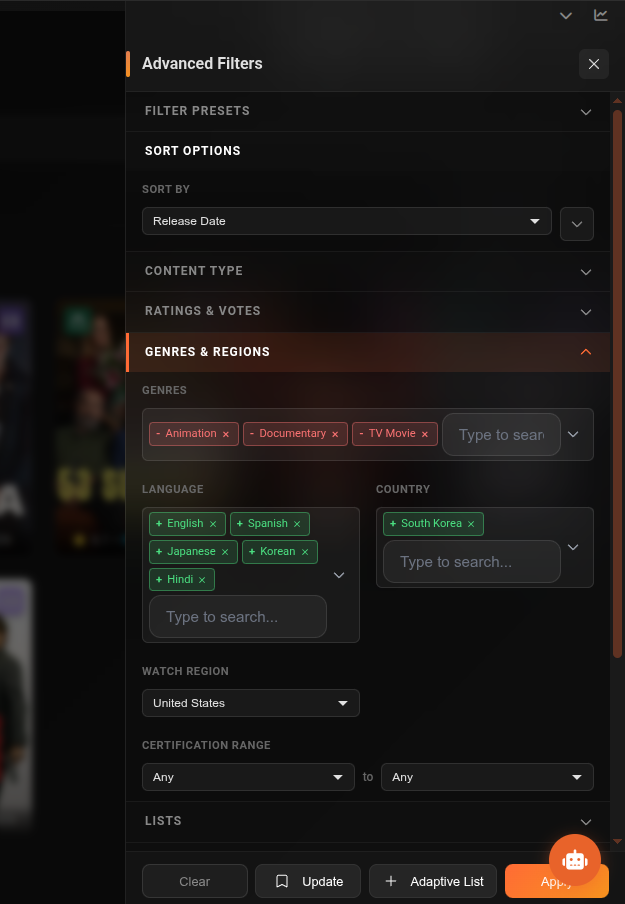
Adaptive Lists use TMDB Discover to build a dynamic content list based on filters you define. Instead of pointing at a fixed list, you describe what kind of content you want — and cli_debrid finds it automatically.
Example uses: - "Download all highly-rated sci-fi movies from the last 2 years" - "Download currently trending TV shows with 1000+ votes" - "Download all movies releasing in the next 7 days on Netflix"
Adding an Adaptive List
- Go to Settings → Content Sources
- Click Add Adaptive List
- A new source section appears — give it a Display Name
- Click Edit Filters to open the filter builder
- Configure your filters (see below)
- Set Versions and any other options
- Save
You can add multiple independent Adaptive Lists — each one is its own source with its own filters.
Adaptive List filters
| Filter | Description | Example |
|---|---|---|
| Media Type | movie or tv |
movie |
| Released Within | Content released in the last N days | 30 |
| Upcoming Days | Content releasing in the next N days | 7 |
| Year Min / Max | Release year range | 2020 / 2024 |
| Rating Min / Max | TMDB score range (0–10) | 7.0 / 10 |
| Min Votes | Minimum TMDB vote count — filters out obscure items | 500 |
| Genres | Include only these genres (TMDB genre IDs or names) | 28,12 (Action, Adventure) |
| Exclude Genres | Skip items with these genres | 99 (Documentary) |
| Keywords | Include items matching these TMDB keywords | |
| Exclude Keywords | Skip items matching these keywords | |
| Language | Original language (ISO 639-1 code) | en |
| Streaming Providers | Available on these platforms | Netflix, Disney+ |
| Networks | TV network (Shows only) | HBO, BBC |
| Runtime Min / Max | Film length range in minutes | 60 / 180 |
| Title Filter | Text or regex the title must match | |
| Sort By | Sort order for results | Popularity, Rating |
| With Cast | Filter by actor (TMDB person ID) | |
| With Crew | Filter by director/writer (TMDB person ID) |
Start broad, then narrow
Start with just one or two filters (e.g. Rating Min + Genre) and see how many results it returns. Add more filters to narrow it down. A list with no votes filter and a broad genre can return thousands of items.
Use Min Votes to avoid junk
Setting Min Votes to at least 100–500 filters out obscure or low-quality items that have very few ratings.
Troubleshooting
Source is enabled but nothing is being downloaded
- Check Connections (in the main navigation) to verify the source is reachable
- Check the logs for errors mentioning the source name
- Verify your API key or URL is correct
- Check if your Cutoff Date or List Length Limit is filtering everything out
Items from this source keep getting blacklisted
- Check your Versions configuration — the filters may be too strict for the content available
- Try enabling Unblacklist on Source Run to retry blacklisted items each cycle