Configuration
After completing the onboarding wizard, all settings are available in the Settings page. Settings are organised into tabs — each tab covers a logical group of functionality.
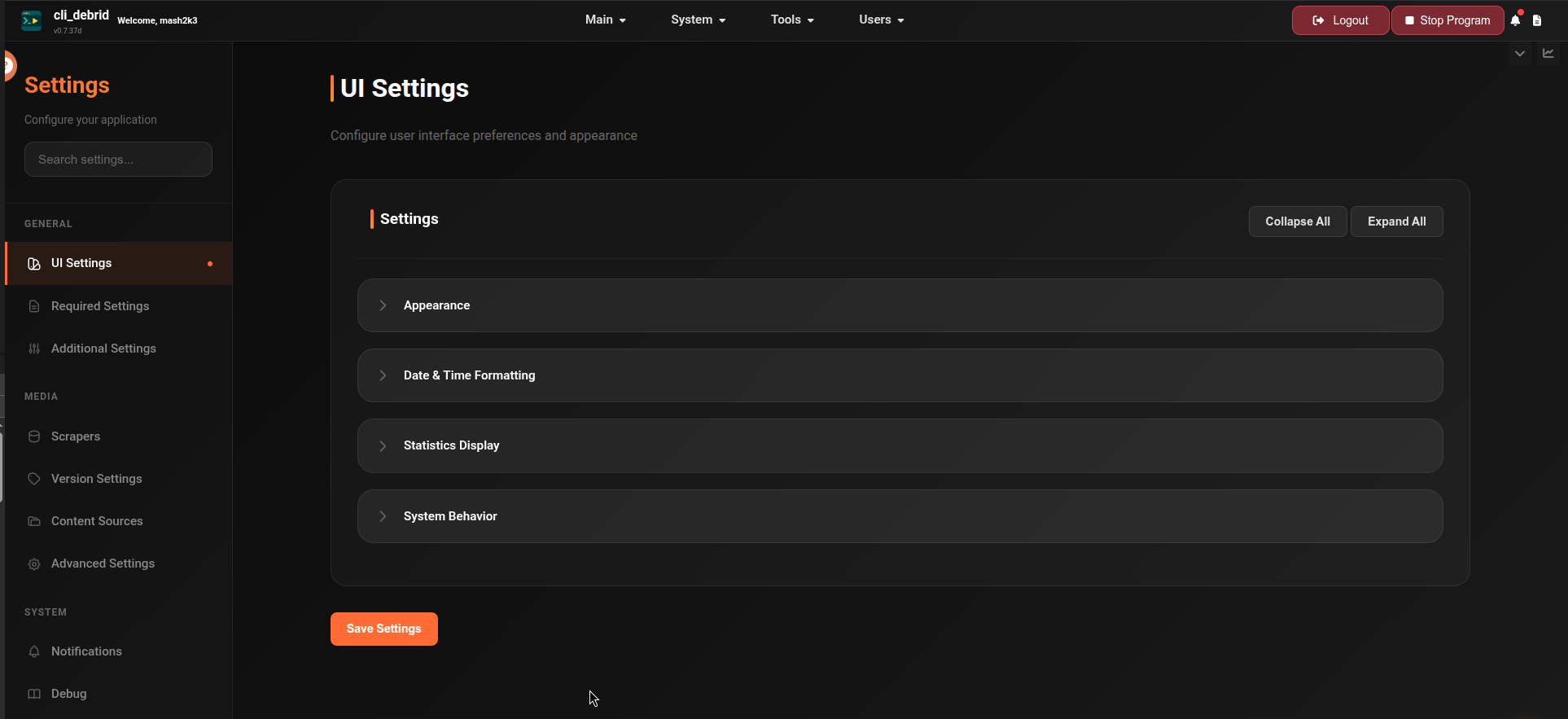
Settings tabs
| Tab | What it covers |
|---|---|
| UI Settings | Theme, time format, compact view, logo, user system |
| Required Settings | Debrid provider, Plex/Jellyfin, file management — must be configured to run |
| Additional Settings | TMDB, Trakt, Bazarr, AI Butler, OIDC/SSO, Phalanx DB |
| Scrapers | Torrentio, Jackett, Zilean, Nyaa, MediaFusion, Prowlarr, and more |
| Version Settings | Quality profiles — resolution, codec, release type preferences |
| Content Sources | Trakt, Seerr, MDBList, Plex Watchlist, Adaptive Lists |
| Advanced Settings | Scraping behaviour, upgrading rules, filtering, queue settings, debug |
| Notifications | Discord, Telegram, Email, NTFY |
| Manage Users | User accounts, roles, API tokens, SSO/OIDC — visible when User System is enabled |
Finding settings quickly
The Settings page has a live search bar at the top. Start typing any setting name and it will instantly filter and jump you directly to the relevant field — no need to browse through tabs manually.
How settings work
- Changes are applied immediately when you click Save
- Sensitive fields (API keys, tokens) are masked after saving
- Some settings require a program restart to take effect — these are labelled accordingly
- Settings are stored in
config/settings.jsoninside your mounted config volume
Onboarding vs Settings
The onboarding wizard only covers the minimum required settings. Everything else — notifications, advanced scraping, overlays, AI Butler — is configured through the Settings page after setup.
Next steps
Start with Required Settings to verify your core connections, then work through Content Sources and Scrapers to start getting content.