Debug Functions
Debug Functions is the toolbox for fixing problems, repairing the database, managing symlinks, and performing maintenance tasks that aren't available elsewhere in the UI.
Access it from System → Debug in the navigation menu.
These are powerful tools
Most debug functions make permanent changes to your database or files. Always read the description carefully before running anything. Use Dry Run where available to preview changes first.
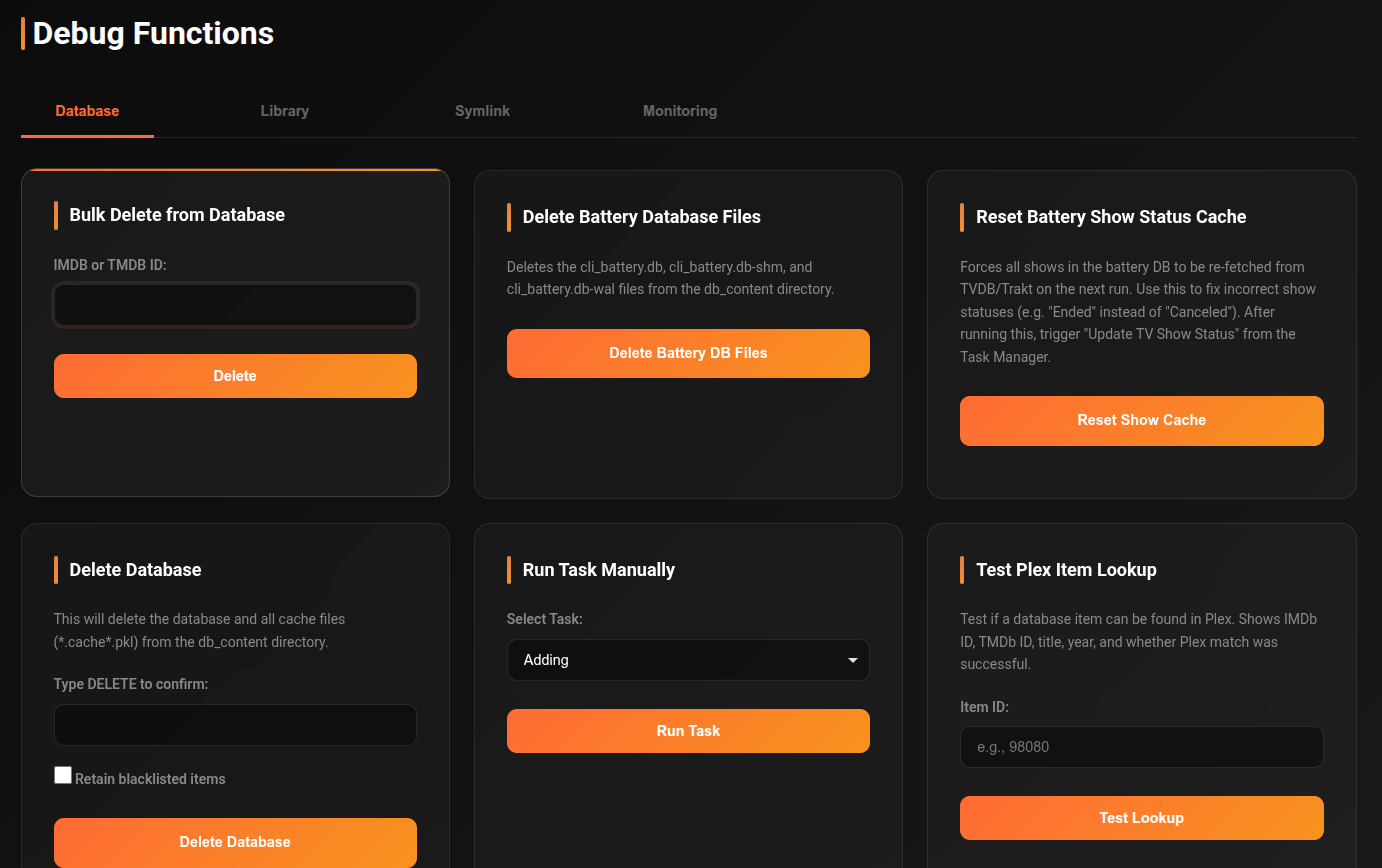
Database tab
Bulk Delete by ID
What it does: Deletes all database entries matching an IMDb or TMDB ID.
When to use: You want to completely remove a title (all seasons, all episodes) from the database at once.
How to use:
1. Find the IMDb ID (format: tt1234567) or TMDB ID (numeric)
2. Paste it into the field
3. Click Delete
4. Confirm the count of items deleted
Delete Battery Database Files
What it does: Deletes cli_battery.db and its associated files from the db_content directory.
When to use: The metadata battery is corrupted or returning incorrect data. This resets it completely — cli_battery will rebuild from scratch.
Warning
After deleting, metadata will need to be re-fetched for all items. This may take time and cause temporary issues with overlay generation and upgrade scoring.
Reset Battery Show Status Cache
What it does: Forces all shows in the battery to re-fetch their status (Ended, Continuing, Cancelled) from TVDB/Trakt on the next run.
When to use: Shows are showing incorrect statuses — e.g. a show is marked "Ended" when it was actually just "Cancelled", or a returning show is still marked "Ended".
After running: Go to Task Manager and run Update TV Show Status to apply the refresh immediately.
Delete Database
What it does: Completely deletes media_items.db and all cache files. cli_debrid starts fresh with an empty database.
When to use: Only as a last resort — database is severely corrupted and cannot be repaired.
How to use:
1. Type DELETE in the confirmation box
2. Optionally check Retain Blacklisted Items to preserve your blacklist
3. Click Delete — the app will reload automatically
Back up first
Use Restore Database from Backup (below) after deleting if you have a backup available.
Run Task Manually
What it does: Immediately triggers any scheduled background task without waiting for its scheduled time.
When to use: You want to force an immediate run of things like: - Get Wanted Content (re-check all sources now) - Update TV Show Status - Sync Overlays - Battery sync
How to use: 1. Select the task from the dropdown 2. Click Run 3. Check the logs for output
Test Plex Item Lookup
What it does: Tests whether a specific database item can be matched in your Plex library.
When to use: Overlays aren't being applied to a specific item — test if cli_debrid can find it in Plex.
How to use: 1. Find the Item ID in the Database Browser 2. Enter the Item ID 3. Click Test — it will show whether the match succeeded and via what method (IMDb, TMDB, or title+year fallback)
Fix Missing IMDb ID
What it does: Adds or updates the IMDb ID for a media item.
When to use: An item has no IMDb ID and features like overlays, upgrading, or battery metadata aren't working for it.
How to use:
1. Enter the Item ID (single row) or TMDB ID (updates all matching rows)
2. Enter the correct IMDb ID in ttXXXXXXX format
3. Click Fix
Remove Duplicate Database Items
What it does: Finds and removes duplicate entries based on the filled_by_file field — keeping one entry per unique file.
When to use: You see duplicate items in your library that point to the same file.
How to use: 1. Click Dry Run first to preview what would be removed 2. Review the list 3. Click Remove to execute
NAS / Network Filter (only shown when NAS paths are configured)
| Option | Description |
|---|---|
| All items | No filtering — process all duplicates |
| Exclude NAS items | Skip duplicate groups stored on NAS/network drives |
| Only NAS items | Only process duplicate groups stored on NAS/network drives |
Configure NAS paths in Settings → Advanced Settings → Library Management → NAS / Network Drive Paths.
Restore Database from Backup
What it does: Restores media_items.db from a previous automatic backup.
When to use: The database was accidentally corrupted or deleted and you need to roll back.
How to use: 1. Select a backup from the list (shows date and size) 2. Optionally enable Create Safety Backup to save the current database before overwriting 3. Click Restore — the app will restart (~60 seconds)
Clean Up Old Database Files
What it does: Scans and removes old database backup files, manual copies, and corrupted files from the backups folder and db_content directory.
How to use: 1. Click Scan to see what would be removed 2. Review the list 3. Click Delete Selected to free up disk space
Manage Duplicate Versions
What it does: Cleans up situations where the same item exists multiple times in different states (e.g. one Collected and one Blacklisted copy of the same file).
When to use: - After failed upgrades that left both old and new versions - After blacklist bugs that created duplicate entries - When you see multiple copies of the same episode in different states
Options:
| Option | Description |
|---|---|
| Keep Collected, delete Blacklisted | Clean up failed upgrade leftovers |
| Keep Blacklisted, delete Collected | Fix blacklist bug duplicates |
| Keep Collected, delete Ghostlisted | Clean soft-deleted duplicates |
| Keep Ghostlisted, delete Collected | Keep ghostlisted versions |
| Keep best quality, delete rest | When multiple Collected copies exist |
Exclude patterns: Enter terms (e.g. REMUX, IMAX) to protect specific versions from being deleted regardless of the rule.
NAS / Network Filter (only shown when NAS paths are configured)
| Option | Description |
|---|---|
| All items | No filtering — process all duplicate groups |
| Exclude NAS items | Skip groups where items are stored on NAS/network drives |
| Only NAS items | Only process groups where items are stored on NAS/network drives |
Configure NAS paths in Settings → Advanced Settings → Library Management → NAS / Network Drive Paths.
Always use Dry Run first.
Fix Episode Numbers
What it does: Fixes incorrect episode numbers by parsing them from the actual filename.
When to use: Episodes have wrong numbers in the database — e.g. the file is S02E05 but the database says S02E01.
How to use: 1. Optionally enable Dry Run to preview 2. Enable Detect and Remove Duplicates to clean up any duplicates created by the bug 3. Click Fix
Library tab
Get Collected from Library (Plex)
What it does: Scans your Plex library and imports any items that are in Plex but not yet in cli_debrid's database.
When to use: - After restoring a database backup — re-import what Plex already has - When items were added manually to Plex outside cli_debrid
Modes: - All — scan the entire library - Recent — only scan recently added items - Backfill — update file sizes for existing database entries
Cleanup Plex Watchlists
What it does: Removes all Collected items from your Plex Watchlist(s). Plex automatically adds items to your watchlist when they're not in your library — this cleans them up after collection.
When to use: Your Plex watchlist is cluttered with items you've already collected.
Get Wanted Content
What it does: Manually triggers a check of all enabled content sources and adds any new items to the Wanted queue.
When to use: You just added a new content source and want to pull its items immediately without waiting for the next cycle.
Refresh Release Dates
What it does: Re-fetches release dates from TMDB for all items in the database.
When to use: Items that should have moved from Unreleased to Wanted haven't — their stored release dates may be outdated.
Manage Cache Files
What it does: Lists and lets you delete content source cache files (.pkl files). These caches speed up source checks but can become stale.
When to use: A content source isn't picking up new items or is returning old/stale data.
How to use: 1. View the list of cache files with their labels 2. Select the ones you want to clear 3. Click Delete Selected
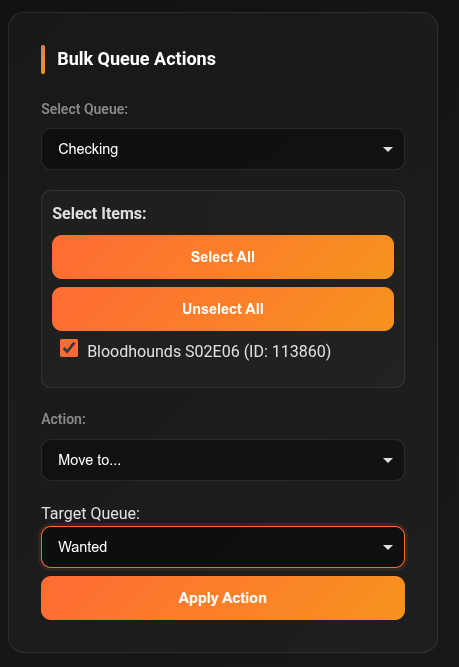
Bulk Queue Actions
What it does: Lets you select items from any queue and move them to another queue or delete them in bulk.
When to use: - Move all Sleeping items back to Wanted - Delete all items in a specific state - Force-move items that are stuck
How to use: 1. Select the Source Queue from the dropdown 2. Items populate automatically 3. Select items (shift+click for range, ctrl/cmd+click for individual) 4. Choose Delete or Move to Queue 5. If moving, select the target queue 6. Click Execute
Version Propagator
What it does: Changes all items currently assigned one version to a different version in bulk.
When to use: You renamed a version profile or want to migrate everything from an old version to a new one.
How to use: 1. Select the Media Type (All, Movies Only, Episodes Only) 2. Select the Original Version (what items currently have) 3. Select the Propagated Version (what to change them to) 4. Click Propagate Version
Direct Emby/Jellyfin Scan
What it does: Triggers a full library scan on your Emby or Jellyfin server and imports any new items into the database.
When to use: Items are in Emby/Jellyfin but not showing in cli_debrid's database.
Move Item to Upgrading
What it does: Moves a specific item directly to the Upgrading queue by Item ID.
When to use: You want to force a single item to be checked for an upgrade immediately.
Manual Blacklist
What it does: Opens the manual blacklist management page where you can view and manage manually blacklisted torrents.
Backfill Resolution Data
What it does: Extracts resolution information (2160p, 1080p, 720p) from file paths for items that are missing this data in the database.
When to use: Upgrade Hub scoring is incorrect, or resolution badges in overlays are wrong/missing.
Symlink tab
(For users running Symlinked/Local mode only)
Symlink Verification Queue
What it does: Shows the current symlink verification status — total files, verified count and percentage, unverified count, and a table of queued items with title, filename, date added, and attempts.
Buttons: - Refresh Queue — reload the current queue state - Verification Scan — trigger a new verification scan
Convert Library to Symlinks
What it does: Converts an existing Plex library to use symlinks. Streams live progress via Server-Sent Events showing files scanned, media found, items processed, DB entries added, symlinks created, and any errors.
One-time, irreversible
This is intended only for converting existing Plex libraries and should only be done once. It cannot be undone.
Symlink Library Recovery
What it does: Reconstructs database entries from your existing symlink folder structure — useful if you lost your database but still have your symlinks.
Riven Symlink Library Recovery
What it does: Same as Symlink Library Recovery but for libraries originally created by Riven.
Fix Zurg Symlinks
What it does: Repairs symlinks where Zurg's folder structure changed — specifically when file extensions were removed from directory names.
How to use: 1. Click Dry Run to preview what would be fixed 2. Review 3. Click Fix to apply
Modify Symlink Base Paths
What it does: Updates the base paths for symlinks and original file locations across all database entries.
When to use: You moved your Zurg mount to a different path, or you moved your symlink folder.
How to use: 1. Enter the Old Base Path (what the paths currently say) 2. Enter the New Base Path (what they should say) 3. Click Dry Run to preview 4. Click Apply
Symlink Library Recovery
What it does: Reconstructs database entries from your existing symlink folder structure — useful if you lost your database but still have your symlinks.
Resync Symlinks with New Settings
What it does: Regenerates symlinks for all collected items using the current symlink settings. Can optionally update stored original file paths before regenerating.
When to use: You changed your symlink folder structure settings and want to rebuild all symlinks to match.
Rclone Mount to Symlinks
What it does: Scans an rclone mount path, creates database entries, and generates symlinks for all found files. Streams live progress.
When to use: Migrating from a non-cli_debrid setup where you have a working rclone mount but no database.
Inputs: Rclone Mount Path, Symlink Base Path, optional Dry Run.
Monitoring tab
Current Rate Limit State
Shows the current rate limiting status for all external API providers (Trakt, Debrid, etc.) with 5-minute and hourly counts. Warnings highlight when limits are exceeded. Use this to diagnose whether cli_debrid is being throttled.
Plex Token Status
Shows validity and expiration information for all configured Plex tokens by user — username, valid/invalid status, Plex username, expiration date, and last checked timestamp.
Trakt Token Status
Shows your personal Trakt authentication token status — valid/invalid, expiration date, hours remaining, last refreshed time, and a preview of the access and refresh tokens.
Torrent Tracking
Opens the torrent history page showing a log of all torrent additions and their current status.
Send Test Notification
Sends a test notification through all your configured notification channels. Use this to verify Discord/Telegram/Email notifications are working correctly.
Download Logs
Downloads the last N lines of debug.log as a file. Useful for sharing logs when reporting a bug.
- Set the number of lines (default: 250, max: 1000)
- Click Download
Common troubleshooting workflows
Nothing is being downloaded
- Check Monitoring → Rate Limit State — are you rate limited?
- Go to Connections page — are all your scrapers green?
- Check Database Browser — are items in Wanted state?
- If Wanted is empty — run Get Wanted Content from the Library tab
- Check the logs (Logs page) for errors
Items stuck in Sleeping
- Open Bulk Queue Actions
- Select Source Queue = Sleeping
- Select All
- Move to Wanted
- Items will be retried on the next cycle
Duplicate episodes in library
- Go to Manage Duplicate Versions
- Select Keep best quality, delete rest
- Add any protected terms (e.g.
REMUX) to Exclude Patterns - Run Dry Run first
- Apply
Overlays not working for a specific item
- Go to Test Plex Item Lookup
- Enter the Item ID
- If the test fails — use Fix Missing IMDb ID to ensure the item has a valid IMDb ID
- Re-run Sync Library from the Overlays page